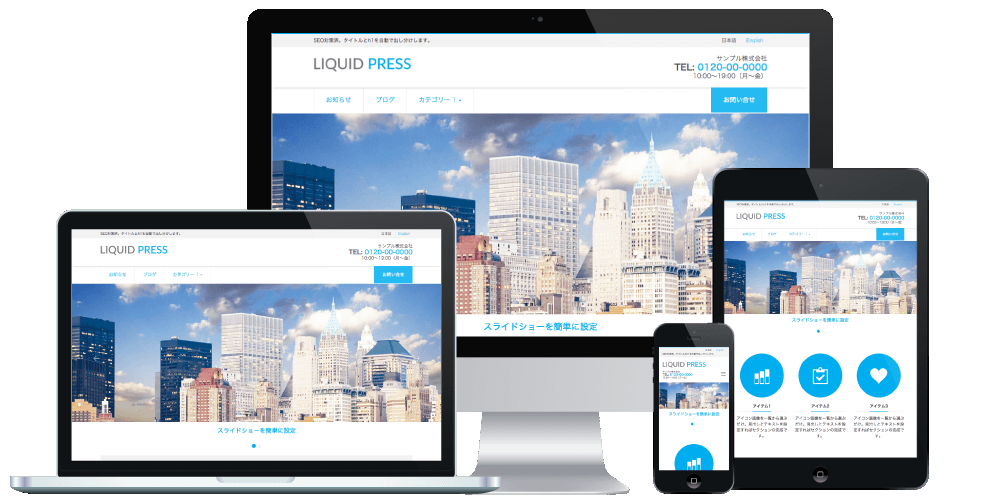
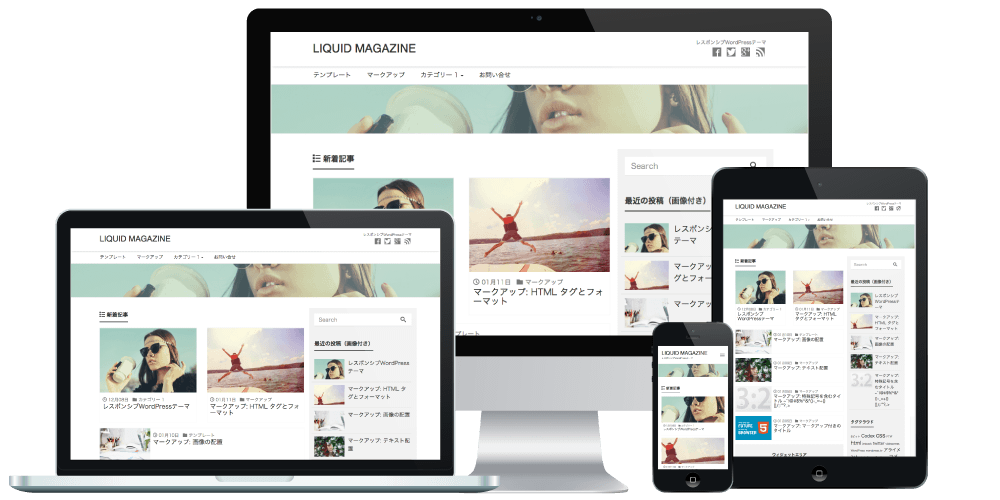
With LIQUID PRESS themes, you can easily create a child theme and customize it.
Applicable Themes
Benefits of Creating a Child Theme
Content you create and edit in a child theme is carried over even when the parent theme is updated.
(If you edit the original theme directly, your edits will not be carried over during an update.)
This is recommended when customizing template files, such as changing the layout, adding original features, or modifying translation files.
Note that with the LIQUID PRESS series, JavaScript/CSS can also be added
using the Custom Header feature.
Child Theme Sample
This is a sample child theme for the LIQUID PRESS series.
In the manual below, please replace the parts shown in red with the name of the theme you are using.
How to Create a Child Theme
1. Child theme structure
A child theme has a directory structure like the following.
- liquid-corporate-child
- style.css
- functions.php
- screenshot.png
- The files you want to customize
If you are creating a child theme for the liquid-magazine theme, name the folder liquid-magazine-child.
Naming the child theme with a -child suffix is recommended, but you may change it.
2. style.css
Edit the child theme's style.css. Define the child theme and specify your styles.
The two key points are as follows.
- Theme Name: - specifies the name of the child theme (may be left blank)
- Template: - specifies the name of the parent theme (must not be blank)
@charset "utf-8";
/*
Theme Name: LIQUID CORPORATE Child
Theme URI: https://lqd.jp/wp/
Description: LIQUID PRESS THEME
Author: LIQUID DESIGN
Author URI: https://lqd.jp/
Template: liquid-corporate
Version: 9999
*/
/* Child Styles */
3. functions.php
If there are functions you want to add, edit the child theme's functions.php.
If no edits are needed, use the sample as is (*it differs from the parent theme's version).
With the LIQUID PRESS series, the following functions can be overridden in a child theme. You may change them if you wish to customize.
Functions that can be overridden in a LIQUID PRESS child theme
4. Customizing templates
If there are template files (.php) you want to customize, copy them from the parent theme, edit them, and place them in the child theme's directory.
The child theme's files will then be loaded with priority. There is no need to copy files you are not customizing.
The LIQUID PRESS series themes support internationalization (i18n).
The translation files (Japanese text) are stored in the "languages" folder.
For how to edit them, see How to use Poedit.
Uploading the Child Theme
Using FTP software or similar, upload the child theme's files to the following server directory.
/wp-content/themes/liquid...Alternatively, compress the child theme folder into a ZIP file and install it by selecting the ZIP from the admin screen below.
WordPress admin screen > Appearance > Upload Theme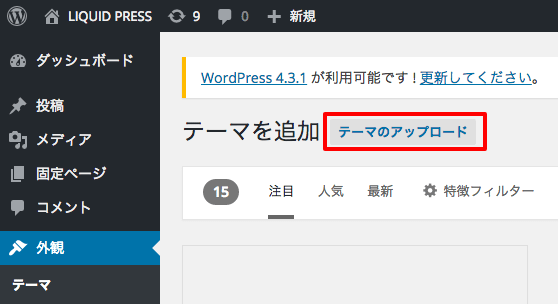
Activating the Child Theme
Activate the child theme from WordPress admin screen > Appearance.
That completes the process.
Official Documentation
For more about WordPress child themes, please also refer to the official WordPress documentation.
Child Themes - WordPress Codex Japanese edition (official manual)
Please Note
*Customization is outside the scope of support. Thank you for your understanding.
*Customizing with a child theme requires knowledge of HTML/CSS/PHP and similar.
*If the parent theme is updated, please manually update any customized templates (following step 4).
*When you update the parent theme, please also update the Version notation in the child theme.
Open Development Status
For LIQUID PRESS, we publish our template development status and change history on GitHub.By developing openly, we aim to make it easier to receive contributions from the community and to give feedback to our users.
https://github.com/lqdjp/liquid-press/issues
LIQUID PRESS
 » Unlimited Plan
» All Themes
» Unlimited Plan
» All Themes