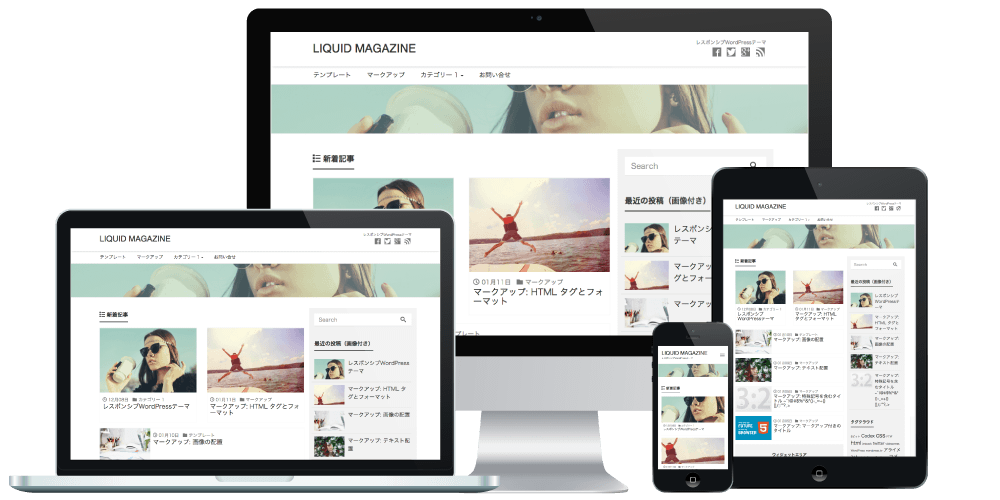
A WordPress theme for corporate and business sites
We introduce how to build and configure a corporate site with WordPress.
With "LIQUID CORPORATE", a WordPress theme for companies, you can easily configure business-related items.
Video manual
Appearance > Customize > Layout
*To customize the layout of the front page, set Admin screen > Settings > Reading > Homepage settings to "Your latest posts" and then check the result.
*If your layout settings cannot be saved, temporarily disable your server's WAF settings and try again.
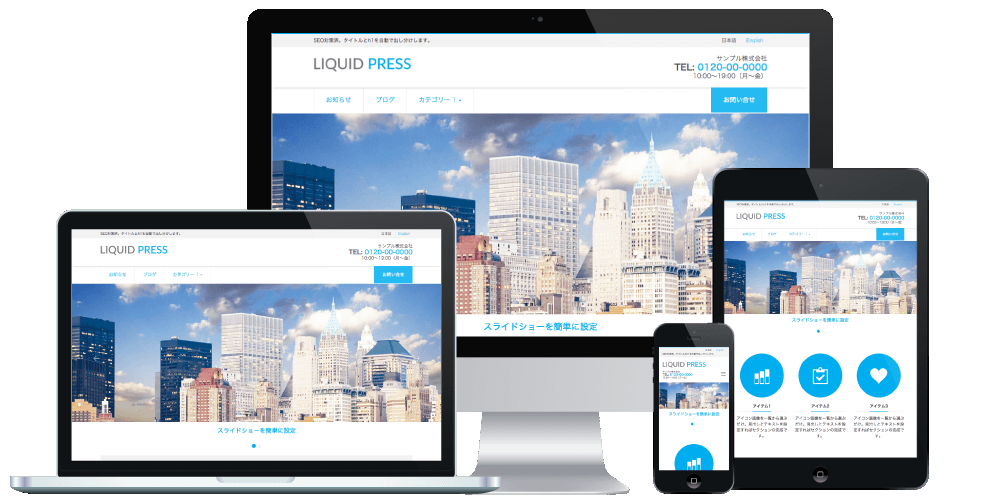
If you have installed WordPress core fresh, the LIQUID PRESS sample content is applied under Appearance > Customize.
Items you have not configured are not displayed.
General settings
*Here we introduce settings specific to corporate sites.For general site-wide settings, please see the theme settings manual.
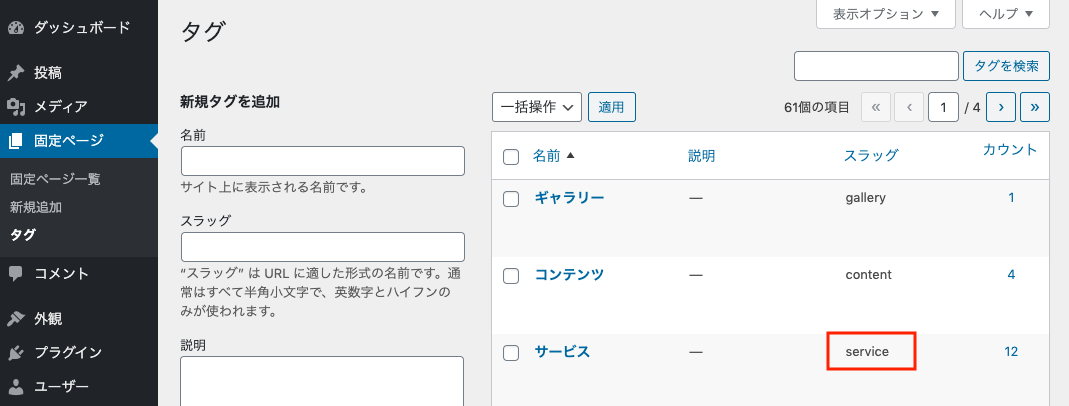
Tag for pages pinned to the top
Specify the slug of the tag for the posts or static pages to pin to the front page. This content can be placed as a "Pinned pages" widget.Featured images and titles are displayed in three columns.
If there are three or more items, they wrap to a new line. They are displayed in order of publication date, newest first. The publication date can be edited later.
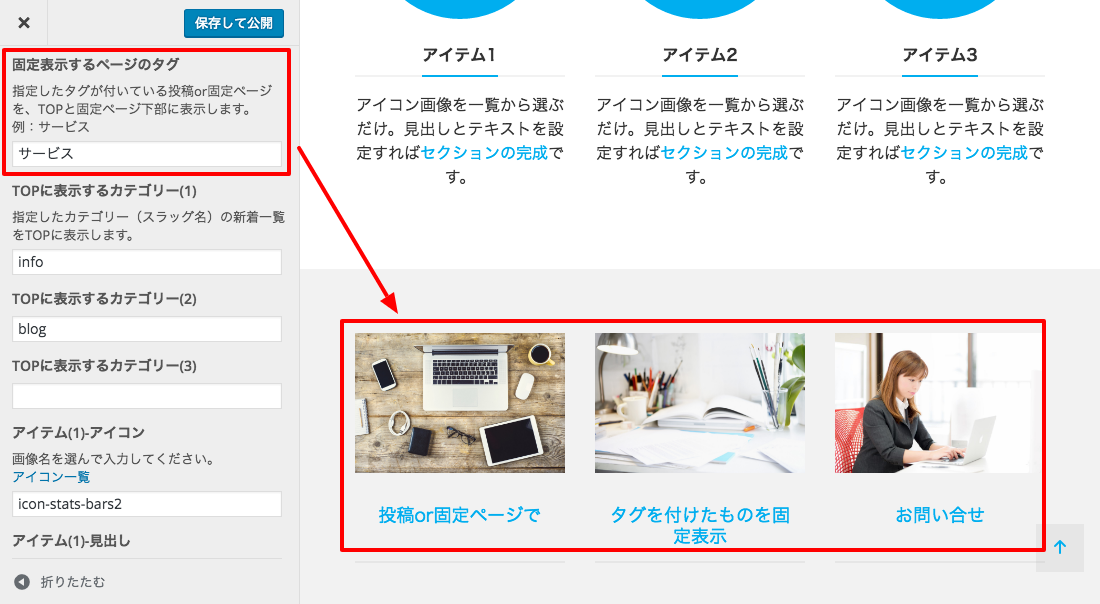 When you add the specified tag to a post or static page, it is displayed automatically.
If the tag name is "Services" and the tag slug is "service", specify "service".
Pinned pages widget
You can also place this as a "Pinned pages" widget. In the widget settings, you can select the target pages from the options below. The widget also lets you specify how many items to display.- Top (front page only)
- Exclude Top (all except the front page)
- Post (post pages only)
- Page (static pages only)
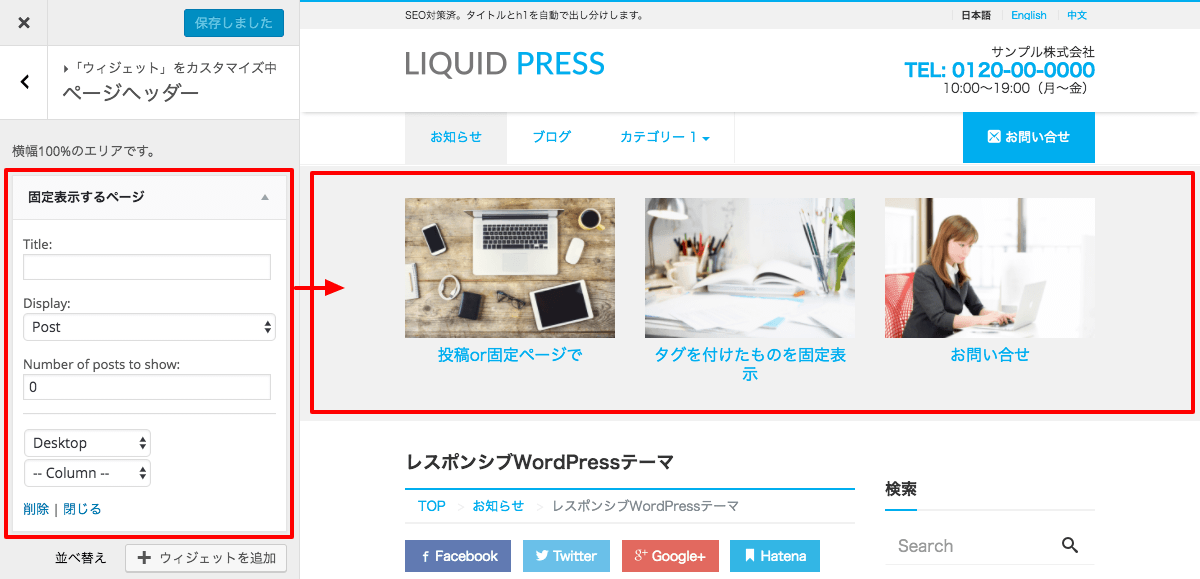 Recommended placement areas: page header, page footer
Demo site settings: placed in the page header, Post (post pages only), Desktop (PC only)
Show new posts on the front page
You can choose whether or not to display a list of new posts on the front page.Categories to display on the front page
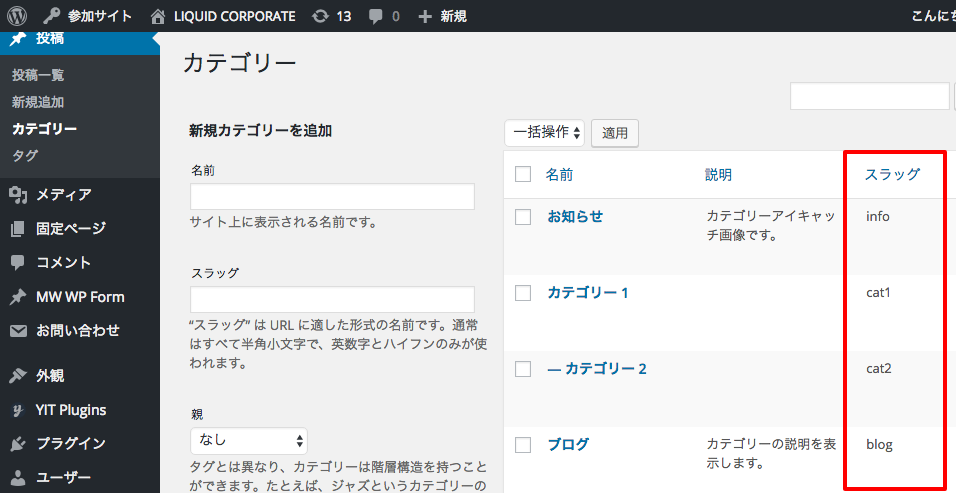
When displaying new posts on the front page, you can specify categories. Up to three can be specified.If none are set, posts from all categories are displayed (the number specified in Settings > Reading); if only category (1) is set, 10 posts are displayed; if category (2) is also set, 5 posts are displayed for each.
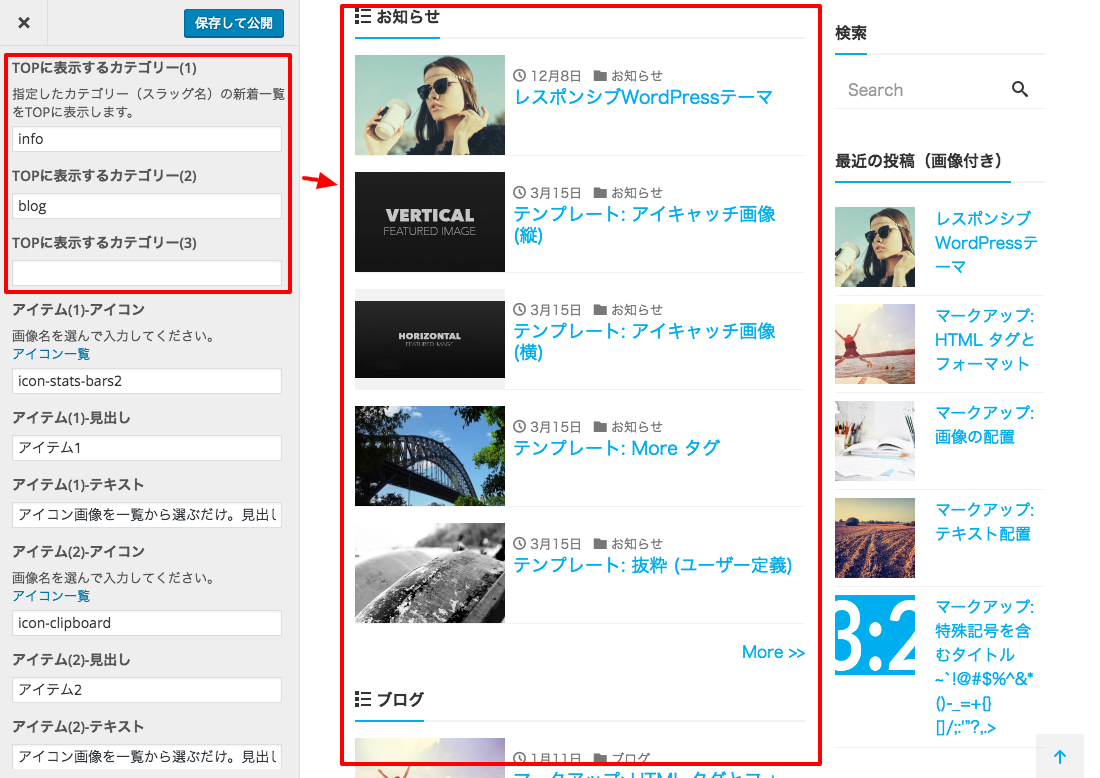 Specify the category "slug" of the posts to display on the front page.
Items
Item - icon
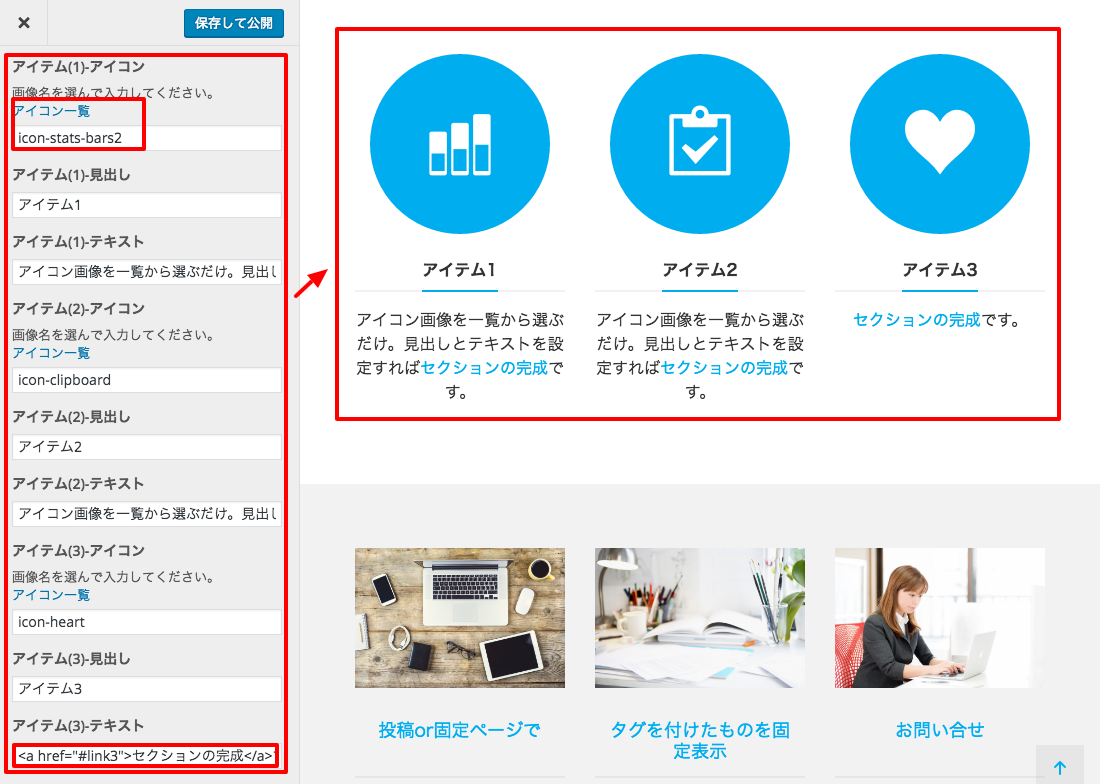
Specify the icon, heading, and text for the item section displayed on the front page. You can set from one to four items. The colors reflect your theme color.For Item - icon, copy the item's name from the "icon list" and paste it in to specify it.
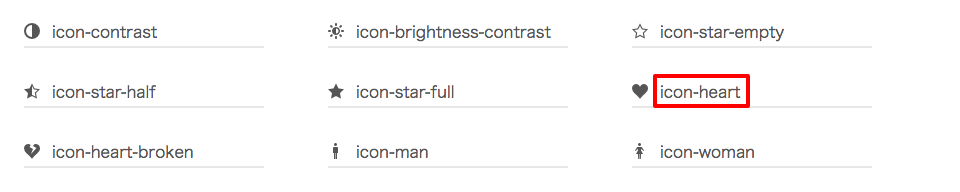 You can also specify the icon by image URL. Please prepare the image separately (upload it to the Media library, for example). It is automatically displayed as a circle.
http://www.example.com/img/icon.png
Item - text
Enter the text displayed below the icon. If you specify a link with an <a> tag, the icon area also becomes a link automatically.<a href="http://www.example.com/">Learn more</a>
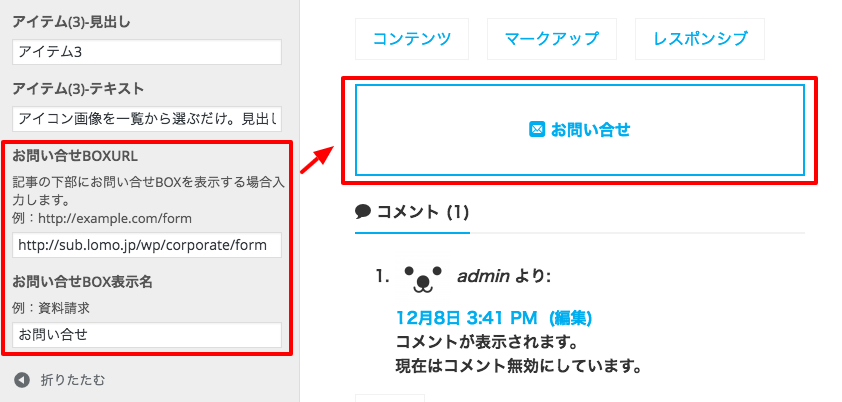
Contact box (CTA)
Specify the URL and display name of the contact box (CTA) shown in the footer of post pages.The contact form itself is created separately.
Company information
Configure from Admin screen > Appearance > Customize > Company Information.The top three items are displayed in the header. All information is displayed in the footer. Items you have not configured are not displayed.
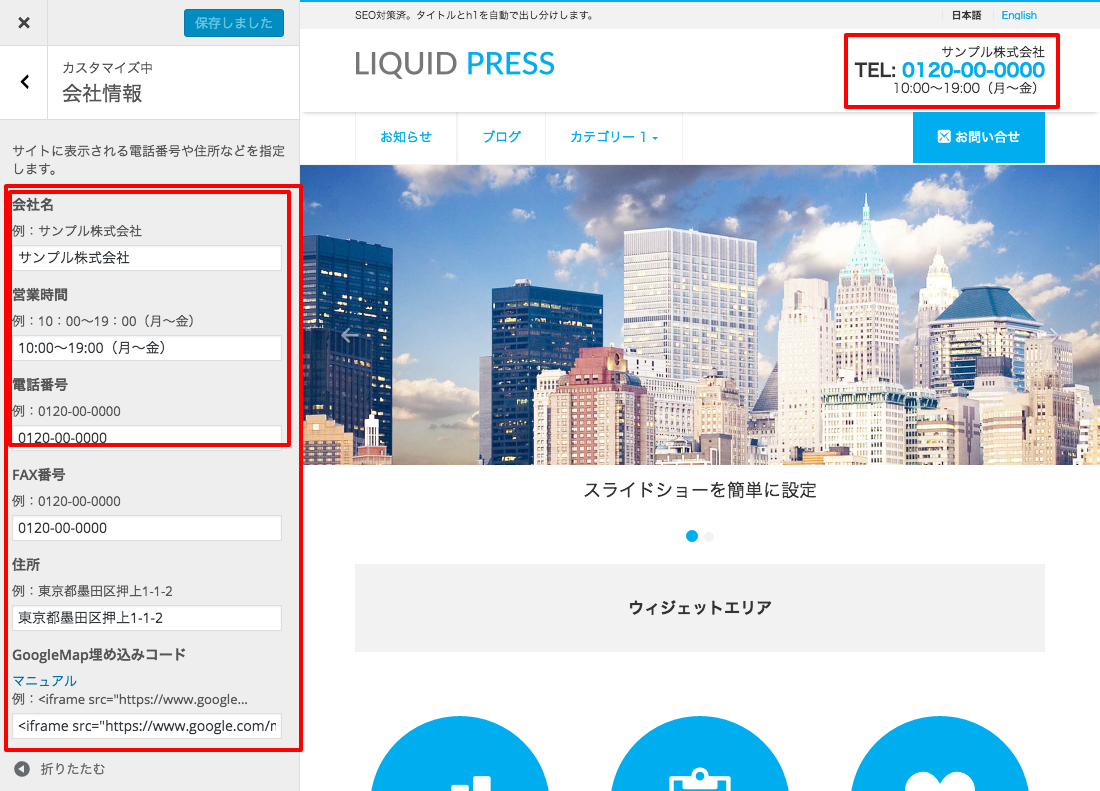
Phone number
For the phone number, you can enter a tag as shown below to add a click-to-call link. Note that calls may not be possible depending on the specifications and settings of the user's device.<a href="tel:0000000000">00-0000-0000</a>
Also, if you use Google Analytics, you can add an event-tracking tag to measure the number of clicks.
For details on event tracking, please refer to the Google Analytics Help.
<a href="tel:0000000000" onclick="ga('send', 'event', 'click', 'tel');">00-0000-0000</a>
Address
You can enter HTML freely in the address field, so you can also enter and display multiple pieces of information, such as a head office and branch offices.Google Map
For how to obtain the Google Maps embed code, please see here.Automatic display in the footer
You can choose whether or not to display company information automatically in the footer. The default is "on".Widgets
Company information
With the "Company Information" widget, you can place your company information content.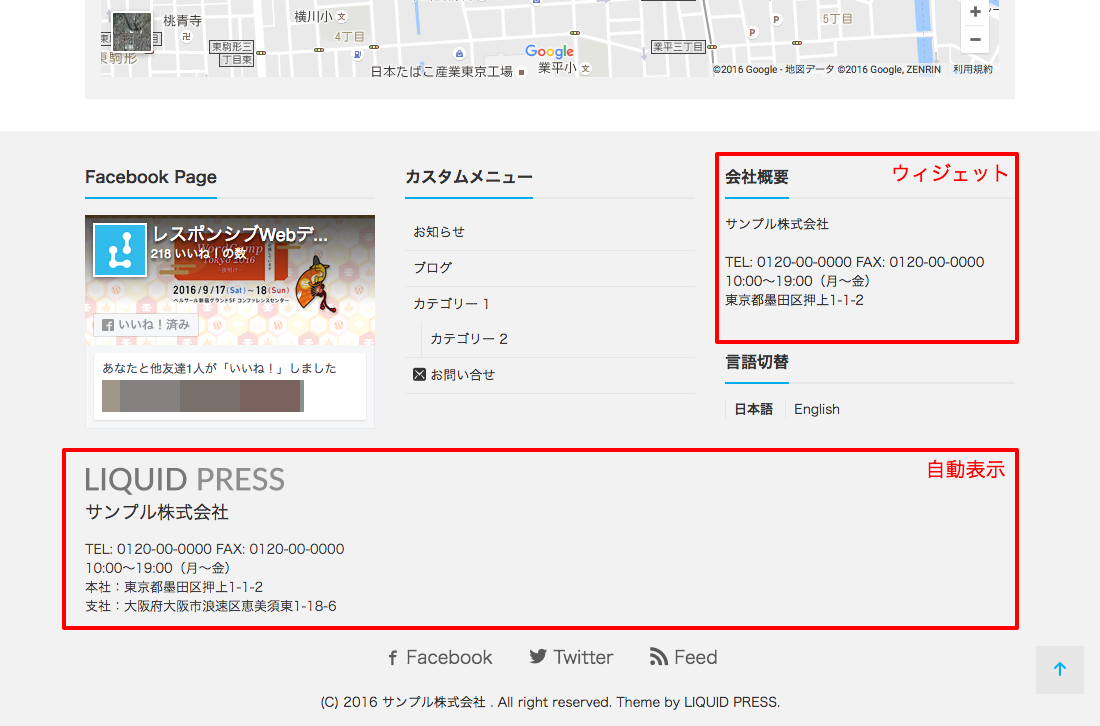
Static page content
With the "Static page content" widget, you can place the content of a specific static page.Select the static page whose content you want to display.
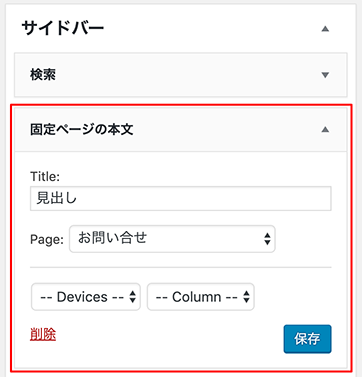 For more about widgets in general, please see here.
Other
Menu
The last item in the menu is automatically right-aligned and highlighted with the theme color as its background.This is well suited to menu items such as "Contact".
 To cancel the right alignment, specify the CSS class "sticky-none" on the last item.
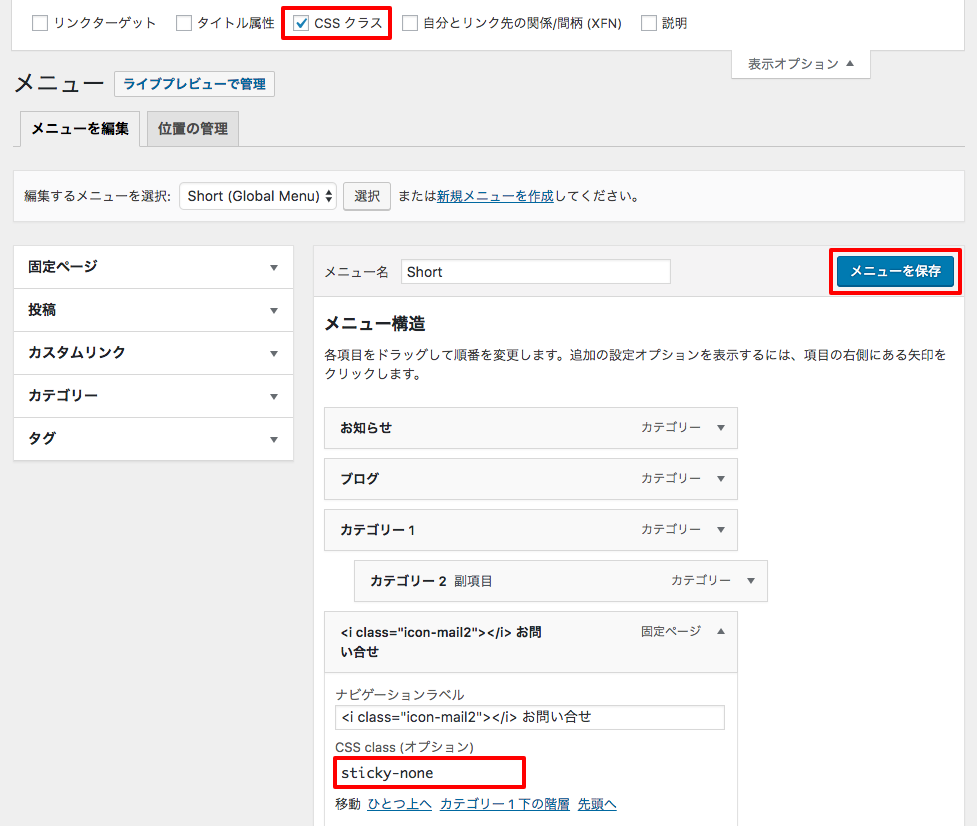
Contact form
Please use a contact form plugin.We support plugins such as "Contact Form 7", which lets you place the form anywhere as a widget.
For how to configure it, please see the Contact Form 7 manual.
*This does not guarantee the operation of the plugin.
Multilingual settings
Please see the multilingual support manual.LIQUID PRESS
 » Unlimited Plan
» All Themes
» Unlimited Plan
» All Themes