We have released the free Gutenberg block template plugin!
Table of Contents
What is the block editor?
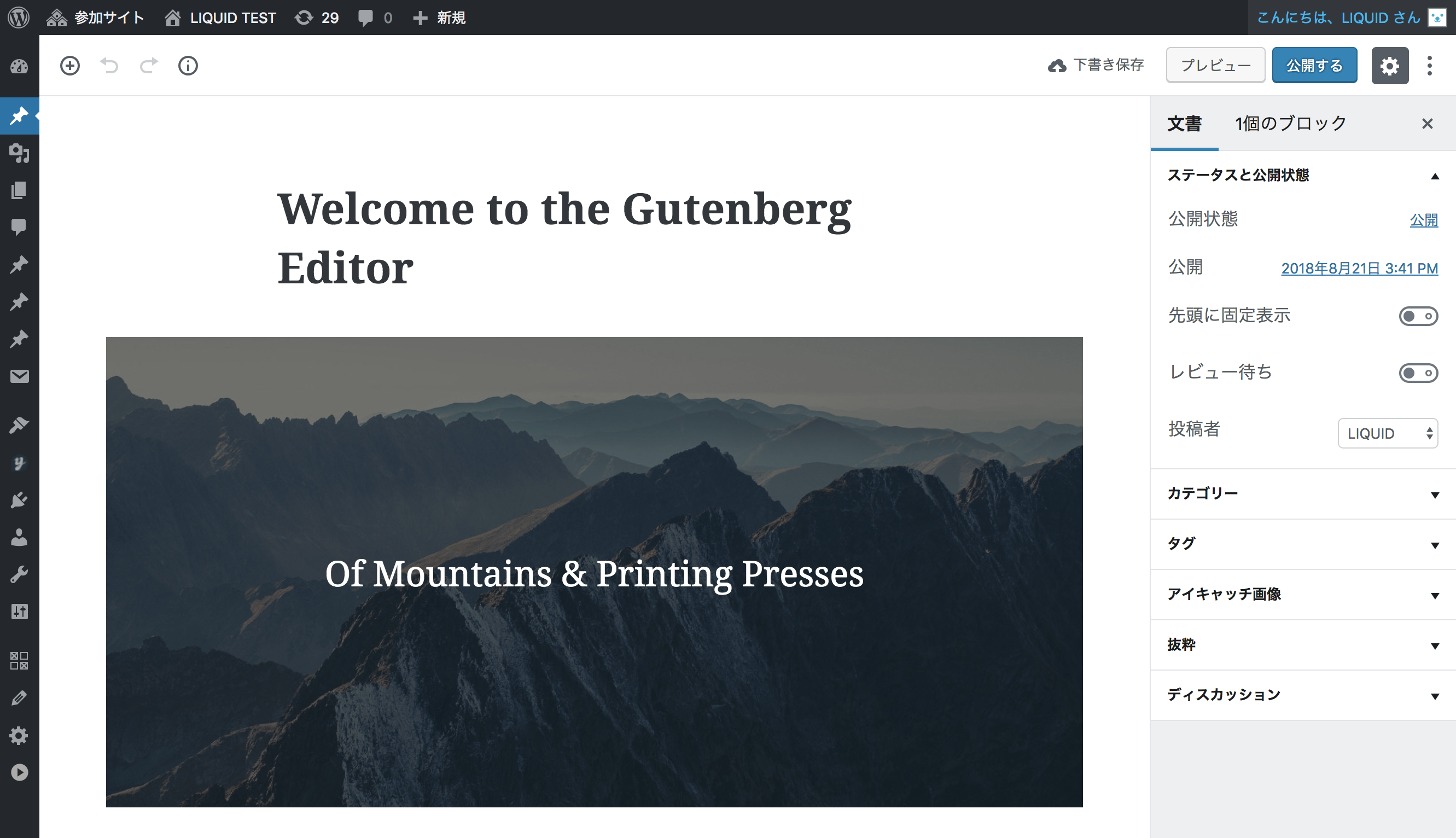 The Gutenberg block editor is the editor introduced in WordPress 5.0.
From WordPress 4.9.8 onward, you can also use it by installing the "Gutenberg" plugin.
The Gutenberg block editor is the editor introduced in WordPress 5.0.
From WordPress 4.9.8 onward, you can also use it by installing the "Gutenberg" plugin.
In the Gutenberg block editor, a feature called blocks lets you build pages by combining elements such as headings, text, and images. Also known as the block editor, it makes it easy to create rich pages without writing any HTML.
The name Gutenberg comes from Johannes Gensfleisch zur Laden zum Gutenberg, the inventor of the printing press.
Trying Gutenberg
On WordPress 4.9.8, click the "Try Gutenberg" button on the admin dashboard.This enables the Gutenberg block editor.
Note that if your theme or plugins are not compatible with the block editor, you can install the Classic Editor plugin to revert to the old editor until you are ready to switch.
* Official support for Classic Editor has been announced through the end of 2021.
How to Use the Block Editor
* Your theme and plugins also need to be updated to block-editor-compatible versions.* We recommend backing up your database and other data before upgrading.
* The following reflects information as of the time of writing. Usage may differ depending on your version of Gutenberg.
Block Editor Interface
The names of each part of the block editor screen (as of WordPress 5.3).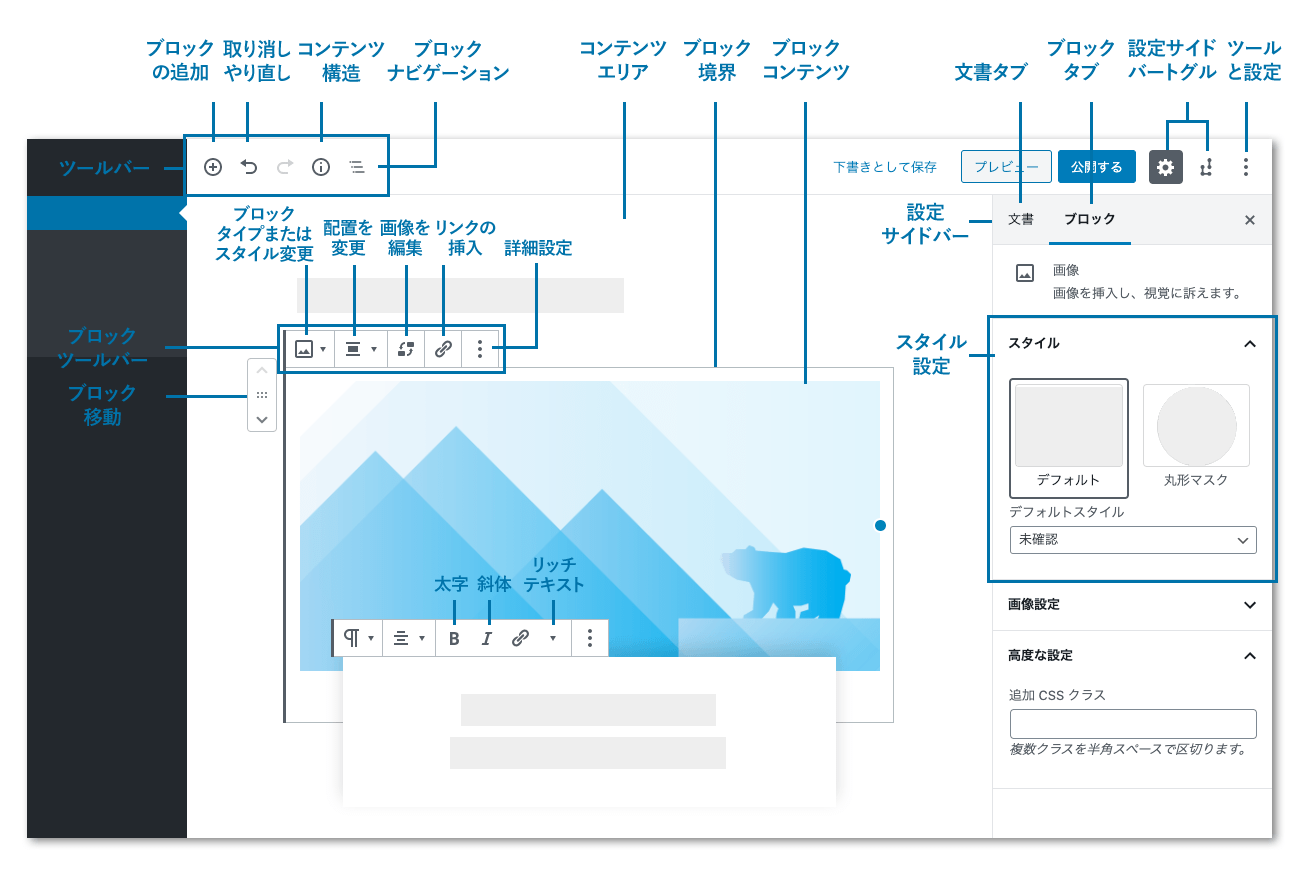
Creating Blocks
First, let's create a block.Click the plus icon in the upper left, and a list of available blocks will appear (reference: block list).
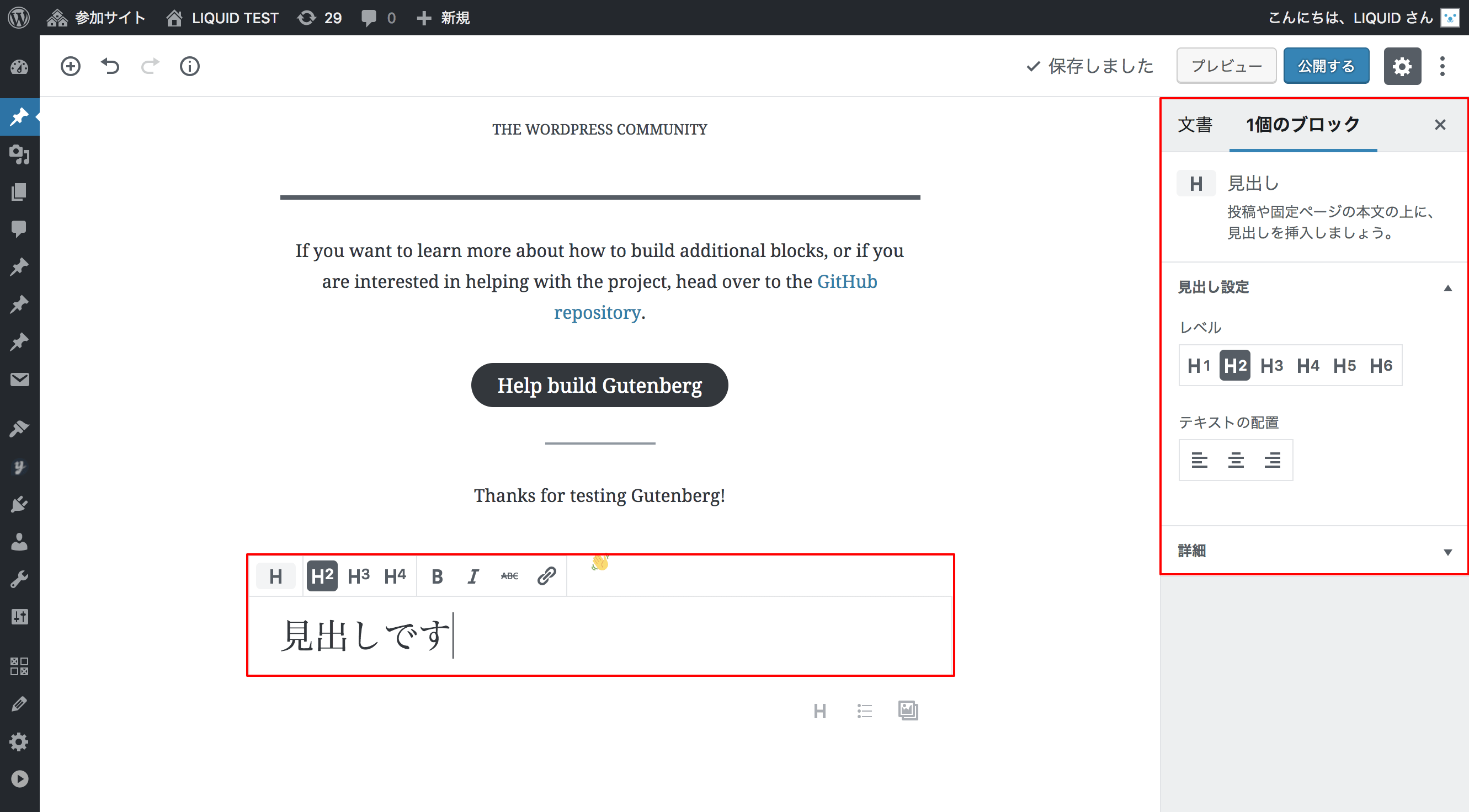
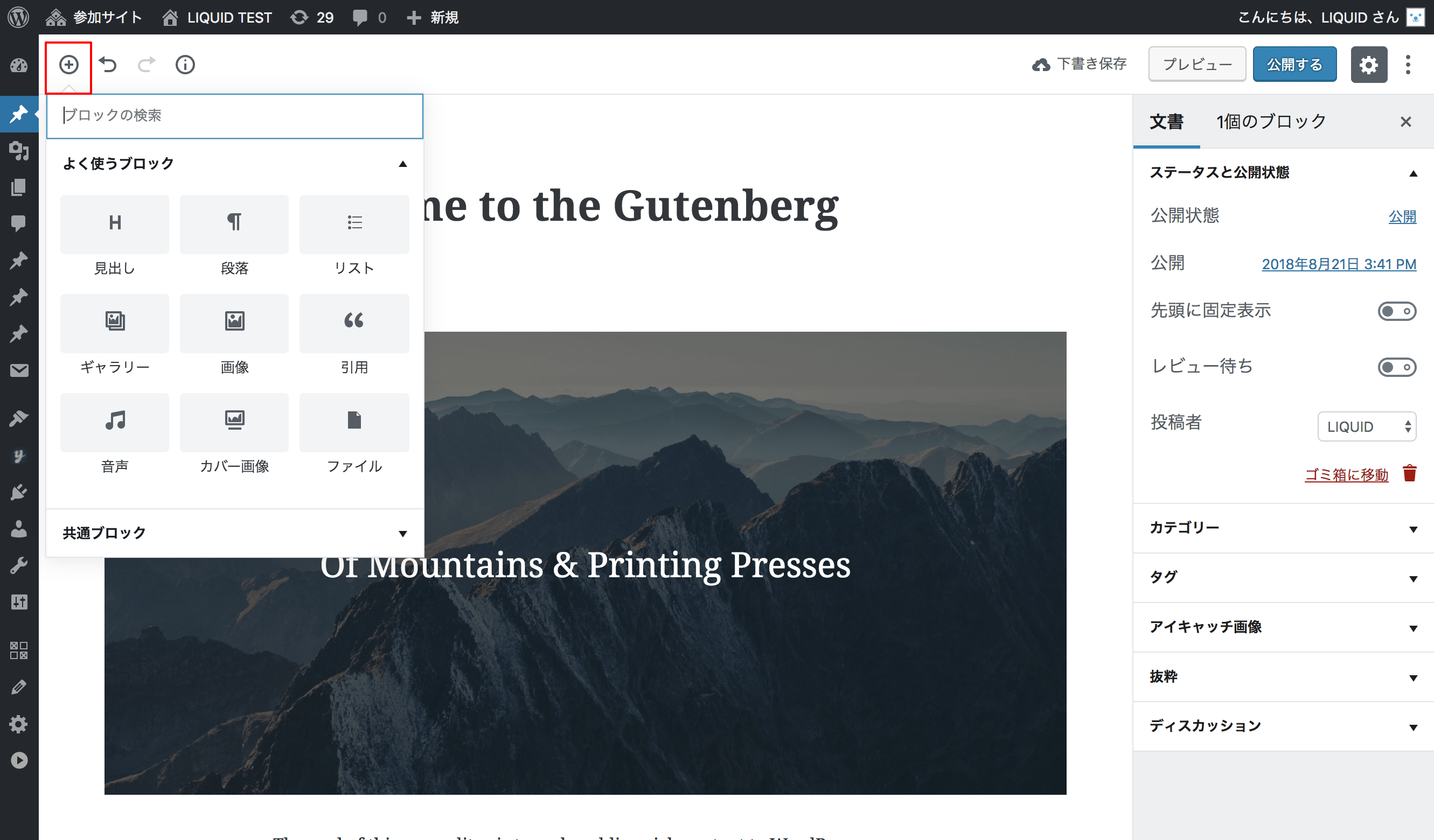 Selecting "Heading" adds a heading block below.
You can enter text and change the heading level.
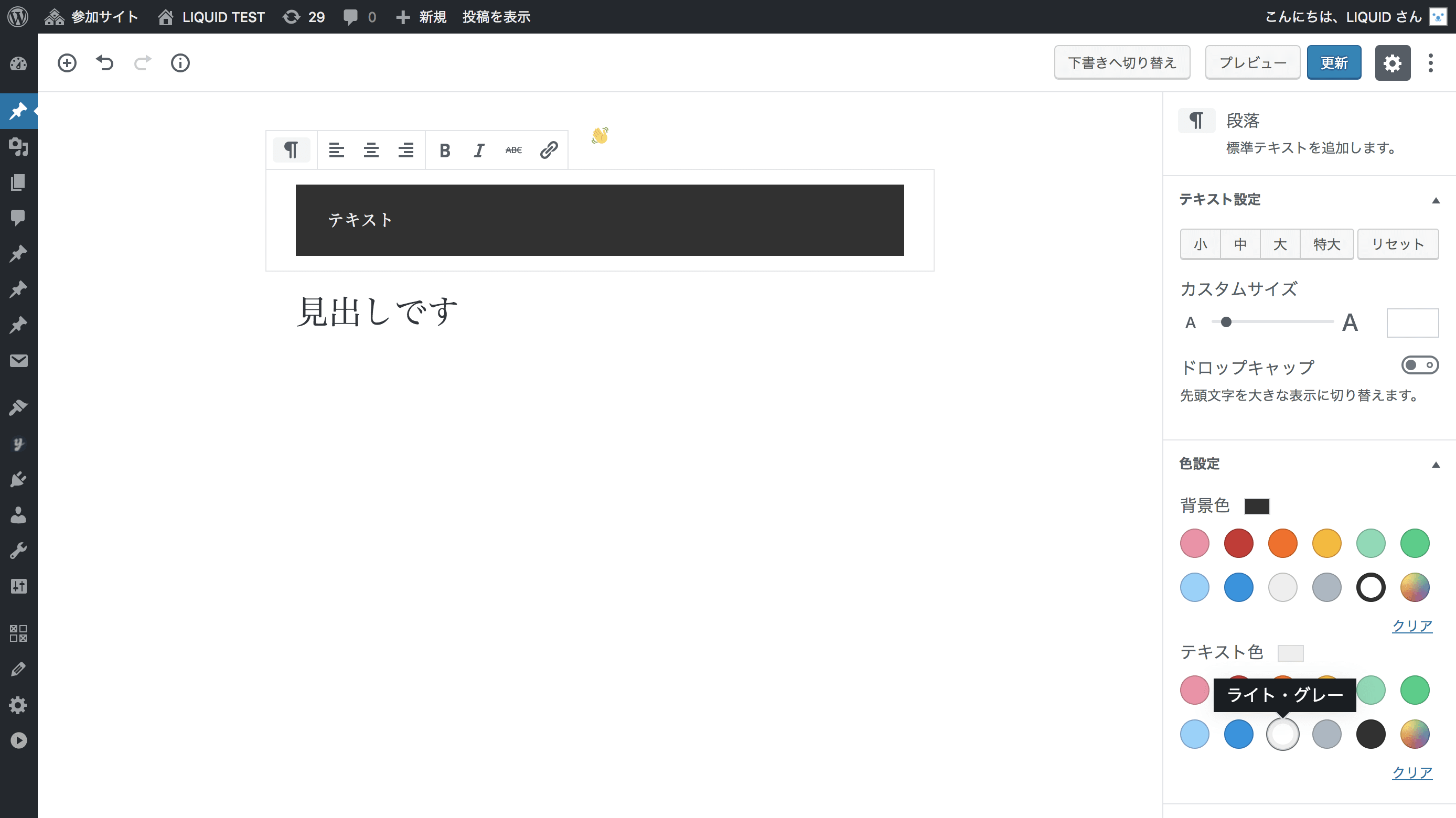
 If you create a "Paragraph", you can also change the background color and text color.
Gallery
Next, let's add a "Gallery" block from the plus icon.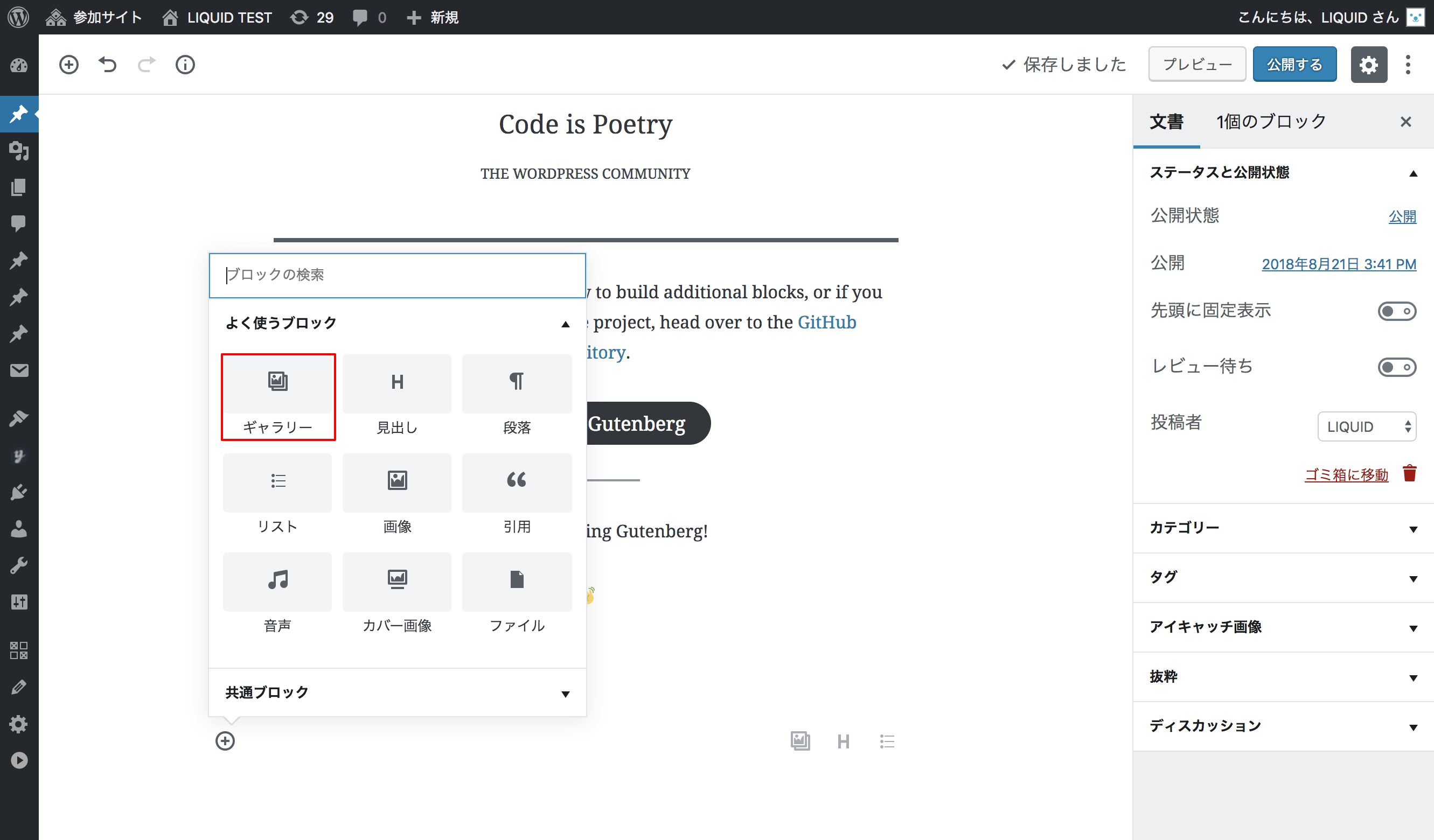 You can upload media or select media files.
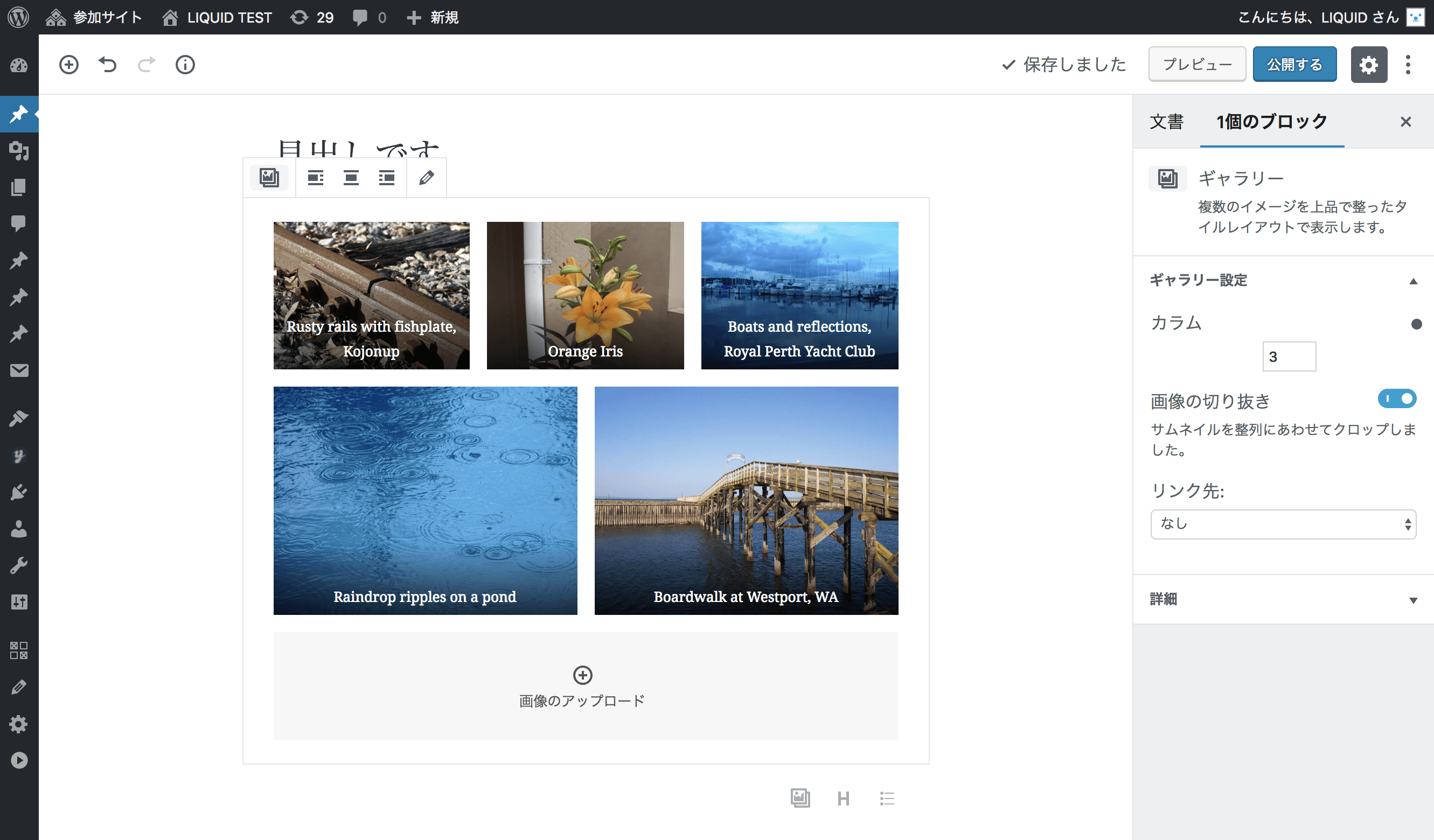
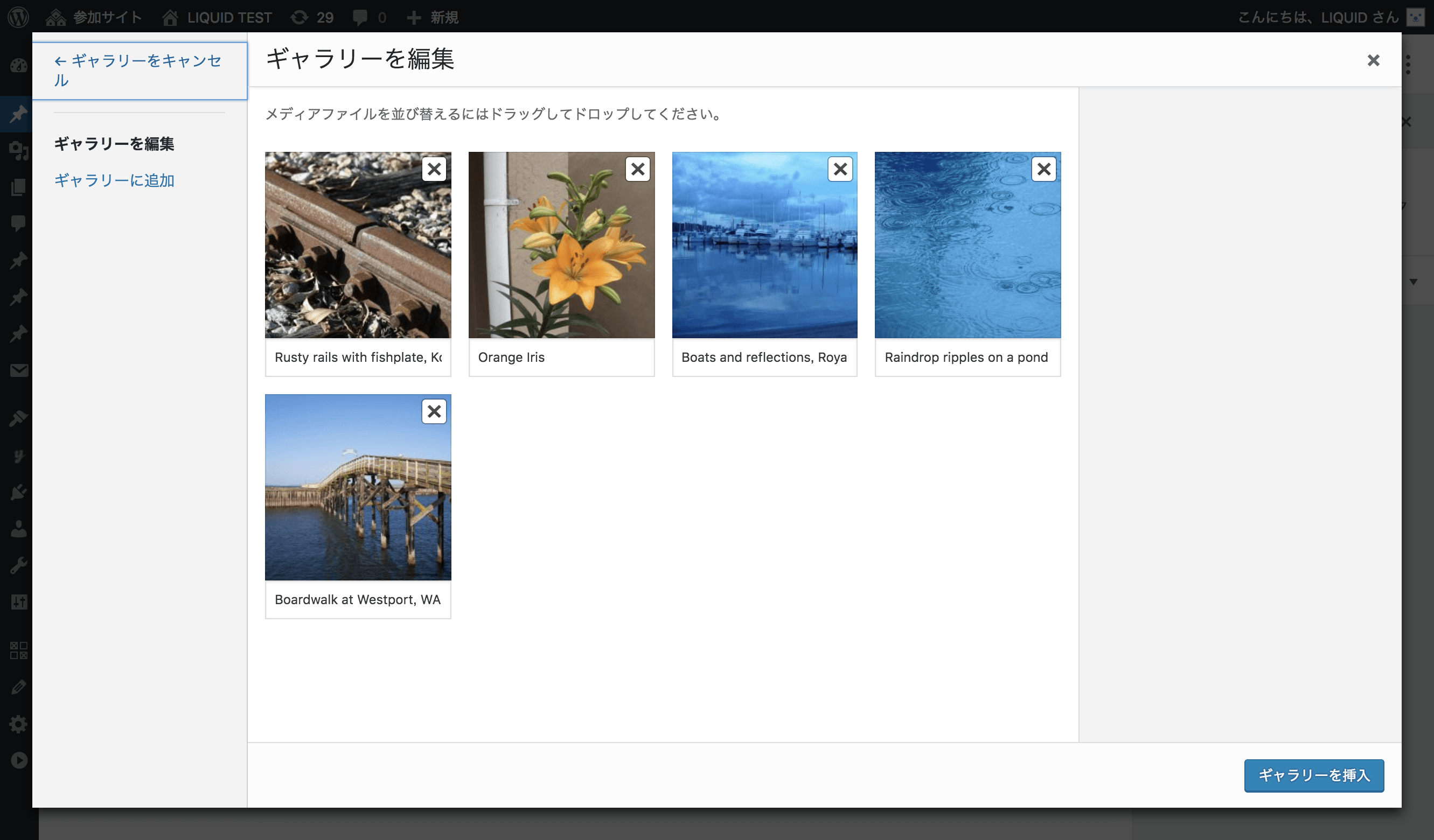 Once you "Insert gallery", the images are laid out automatically.
The menu on the right side lets you configure block options. For a gallery, you can set the number of columns and the link destination.
Cover Image
Next, let's add a "Cover" block.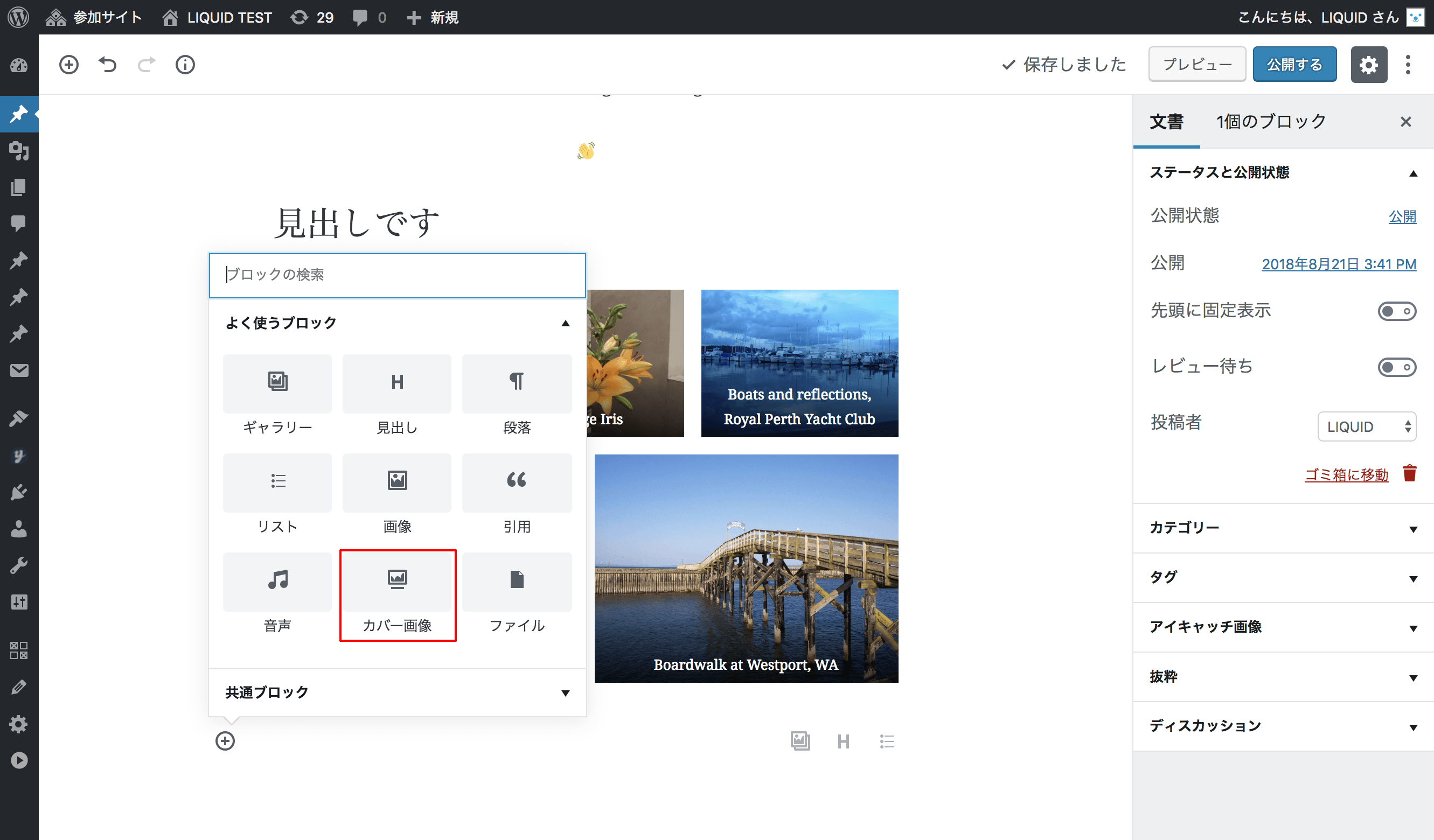 When you select an image, a text input area appears. Videos can also be selected.
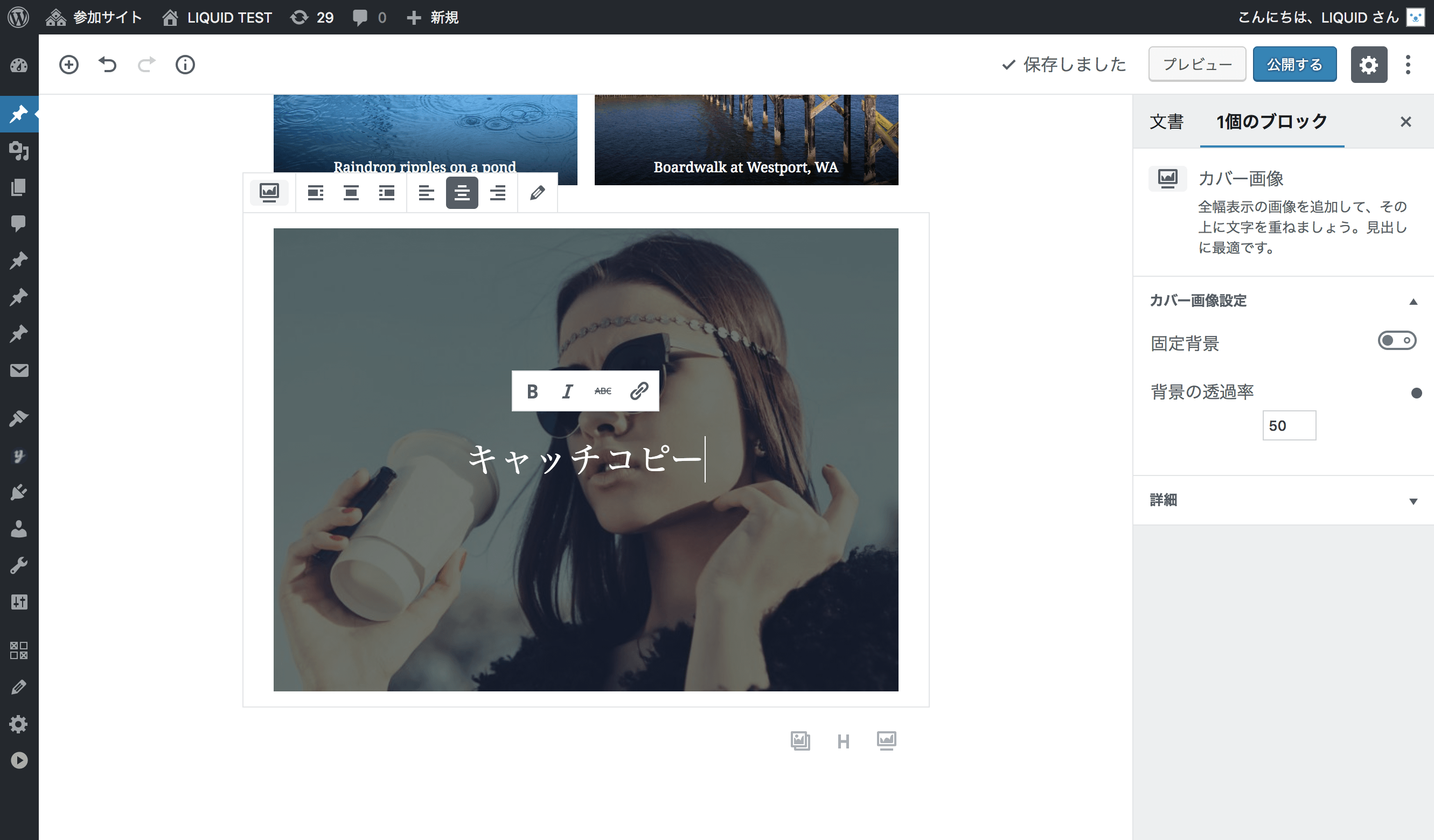
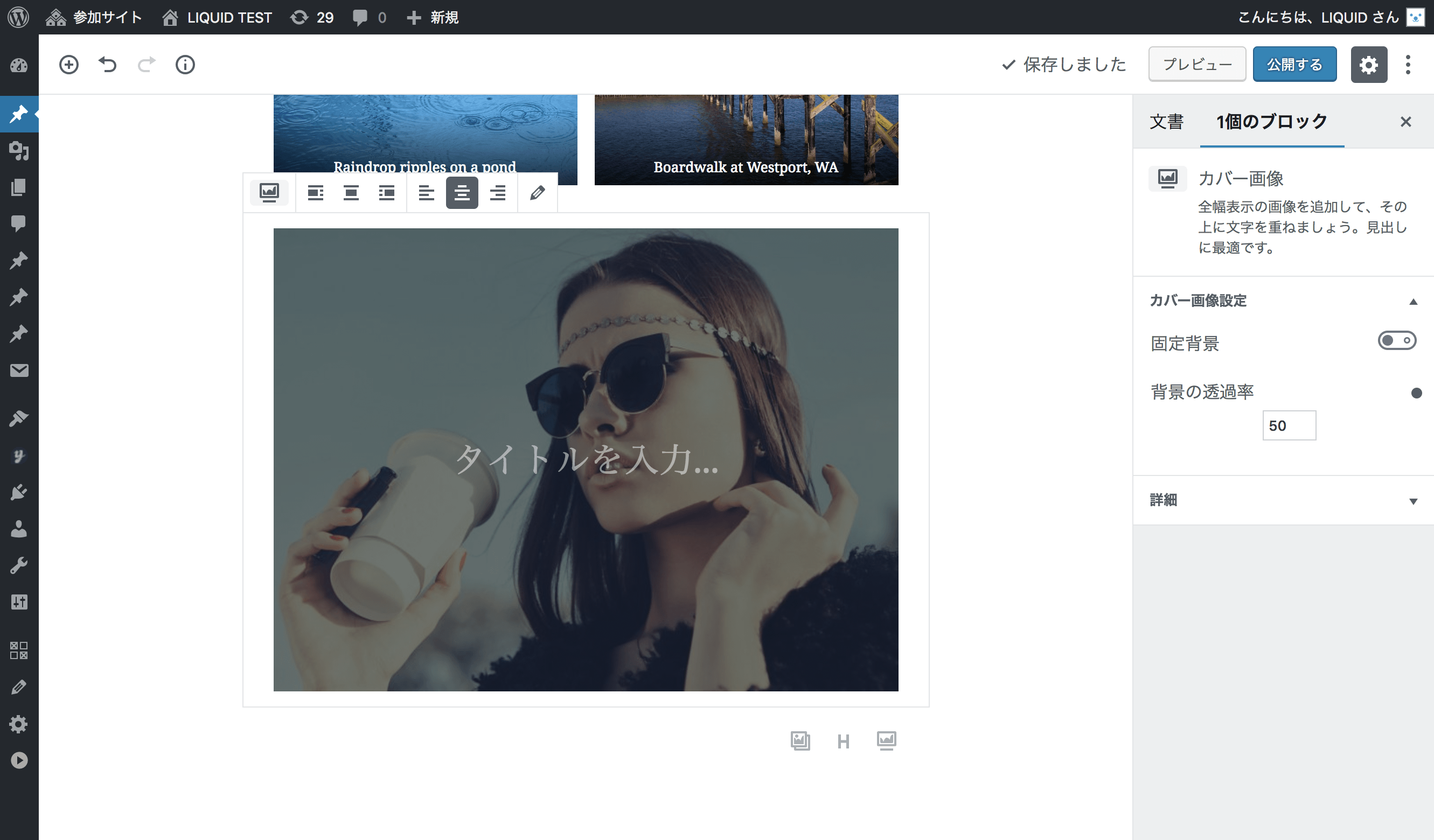 The text you enter is displayed overlaid on the image.
Without having to add text to the image itself, you can easily create an image with a catchphrase.
Columns
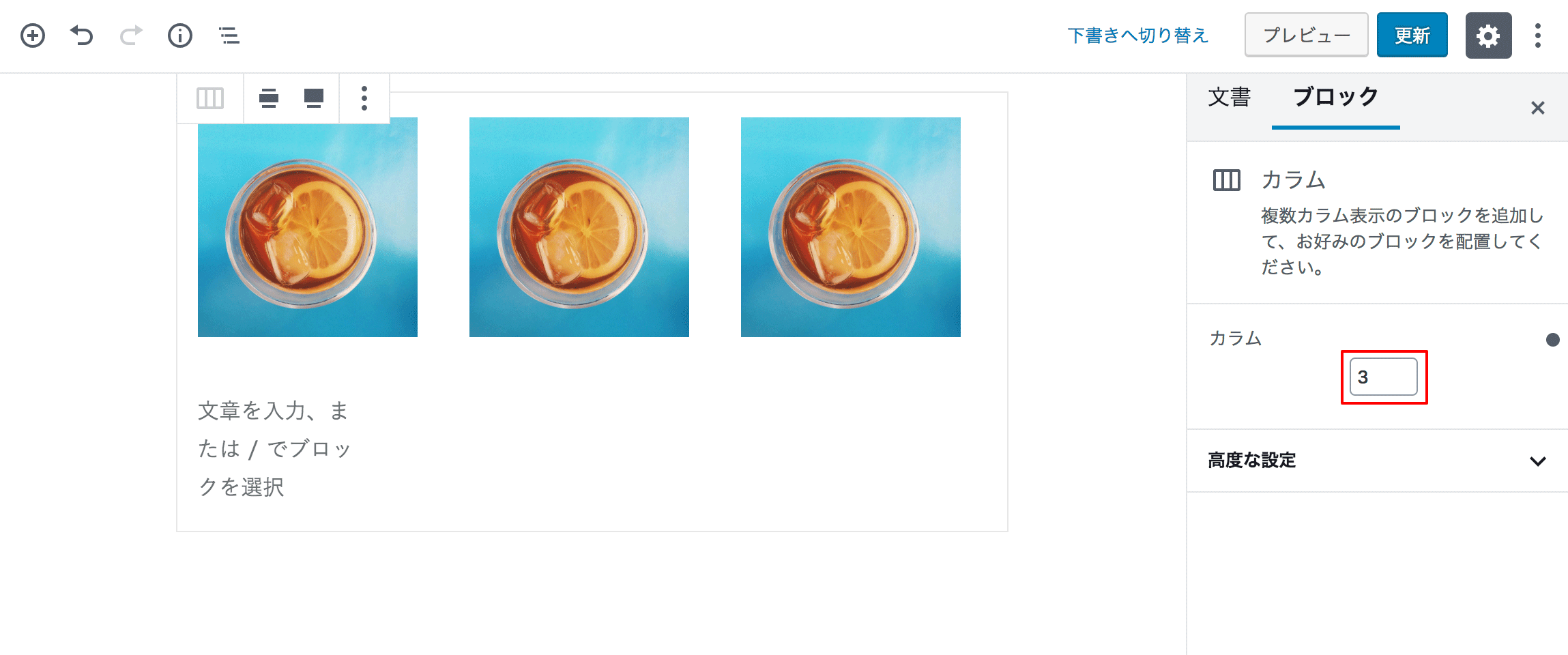
Next, let's add a "Columns" block.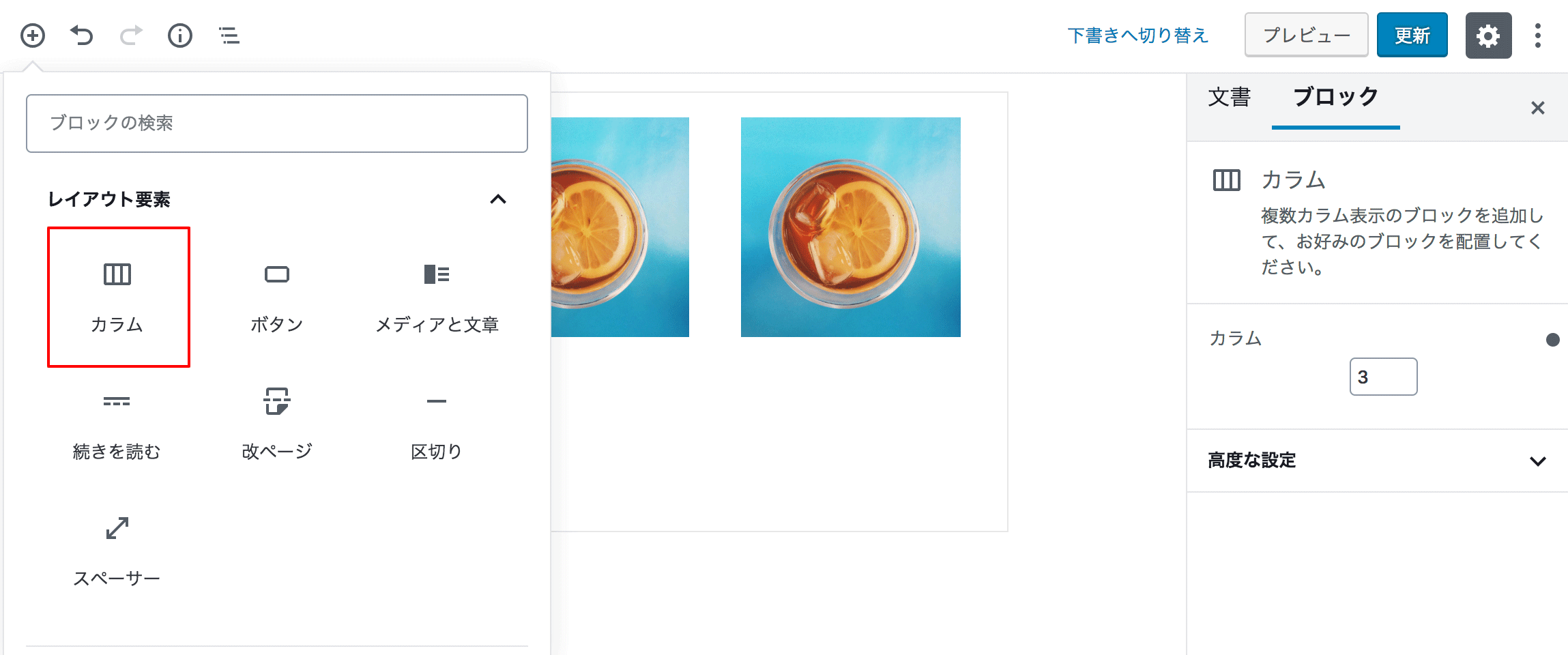 This lets you create a multi-column layout. Add paragraph or image blocks inside the columns.
You can set the number of columns in the sidebar.
Embeds
Next, let's add "Twitter" from the embed blocks.Simply enter the URL of the tweet you want to display, and the embed is complete.
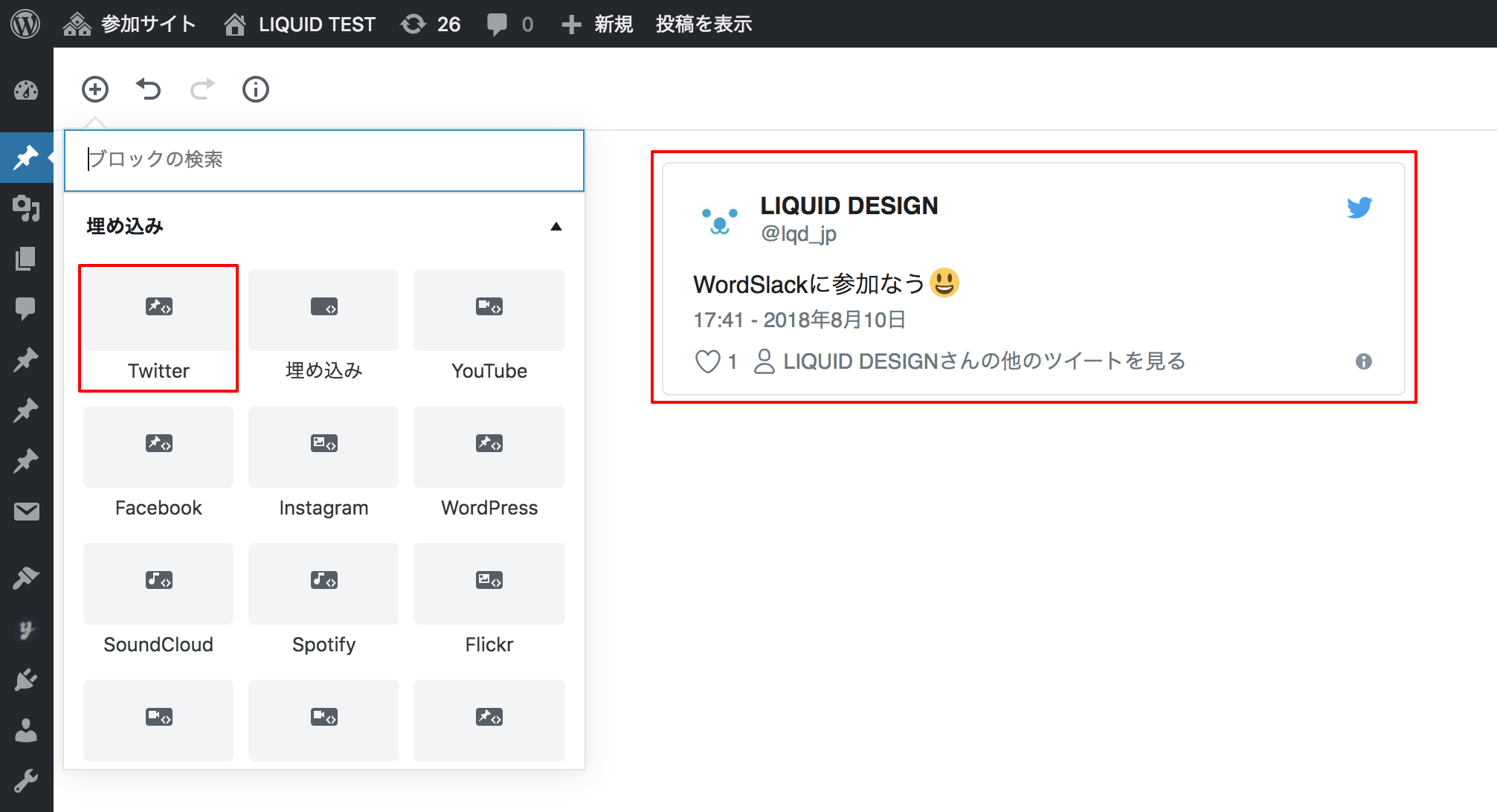 You can also easily embed YouTube, Facebook, Instagram, and much more.
* To display a blog card, you need to enter the URL under Embeds > WordPress.
Block Navigation
It is convenient to select blocks from "Block navigation" in the upper left.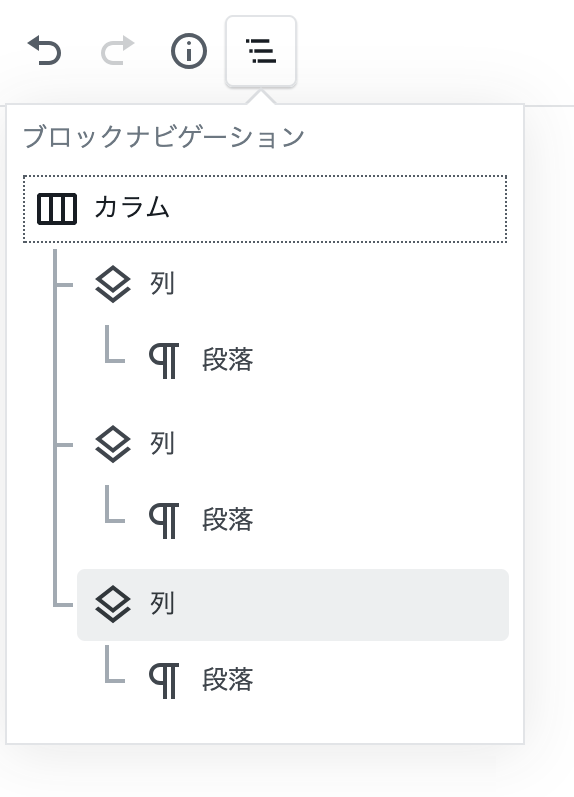
Classic Block
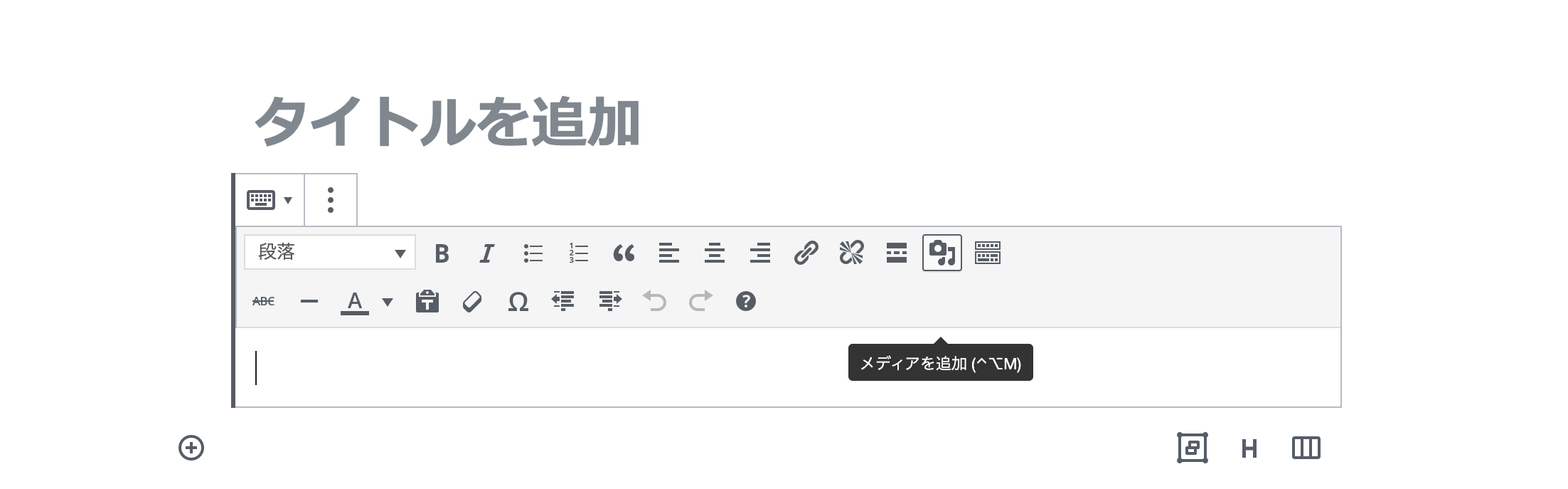
If you create a Classic block, you can type within the block editor just as you did in the old editor. The TinyMCE buttons are available.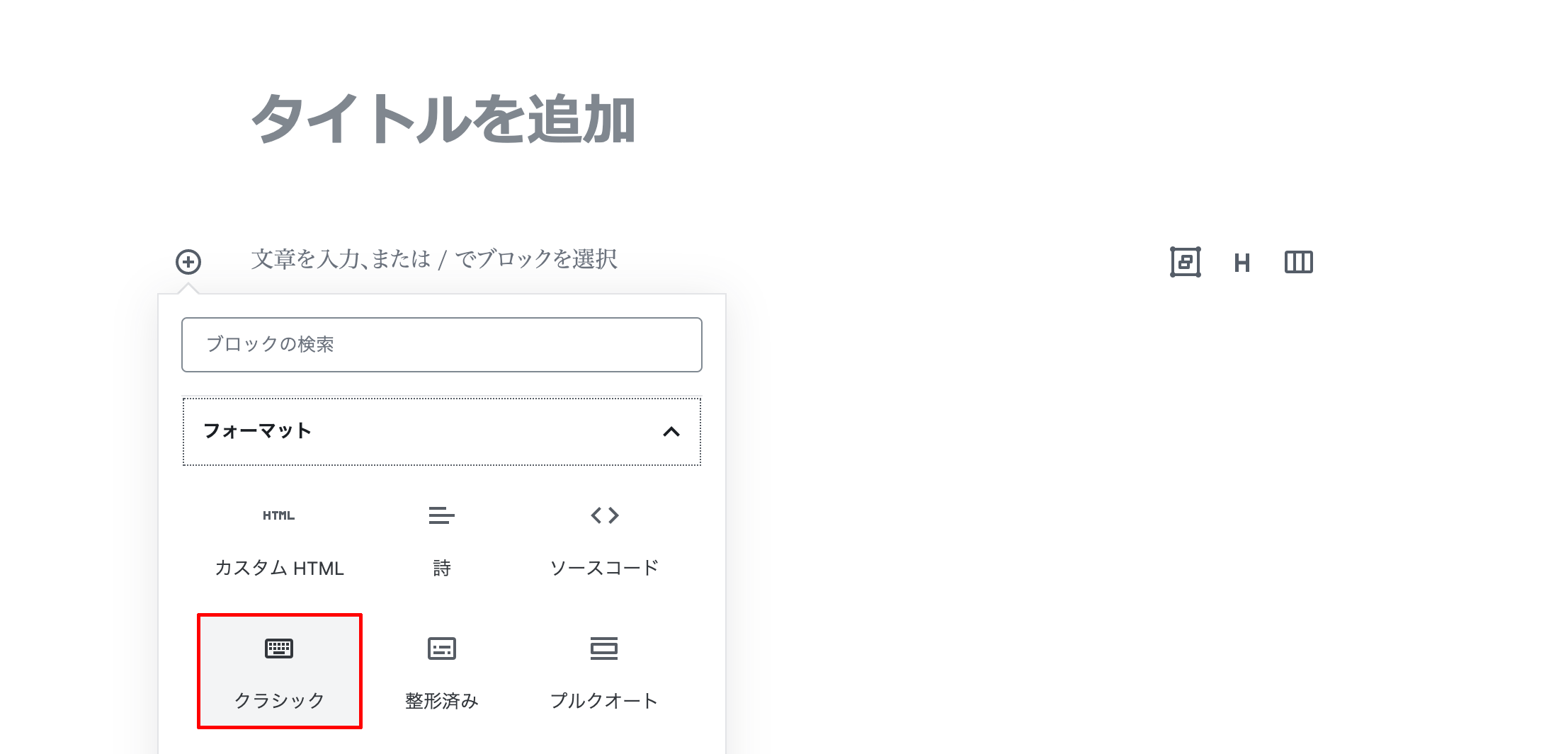
Color Settings
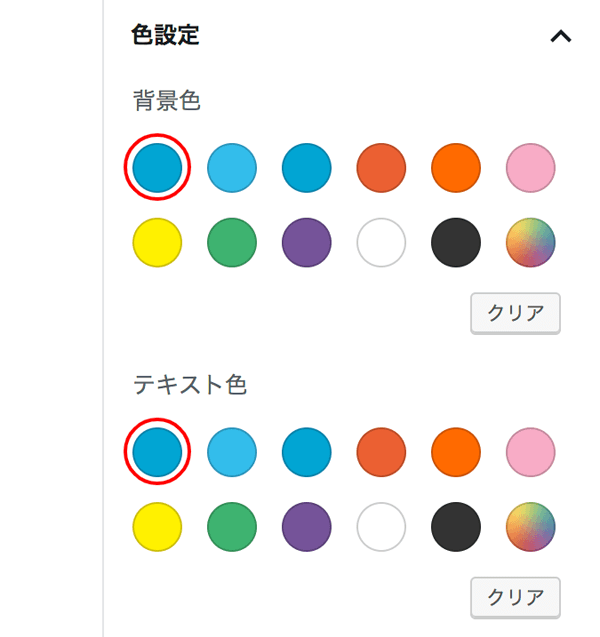
For supported blocks, you can choose a background color, text color, and so on.In LIQUID PRESS, the color in the top-left corner is linked to the "theme color".
Reordering
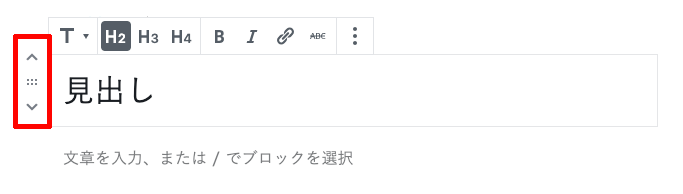
When you focus a block, reordering tools appear on the left side.You can move a block by clicking the up/down icons or by dragging it.
Duplicating
You can also "Duplicate" from the menu (three-dot icon) on the right of the block.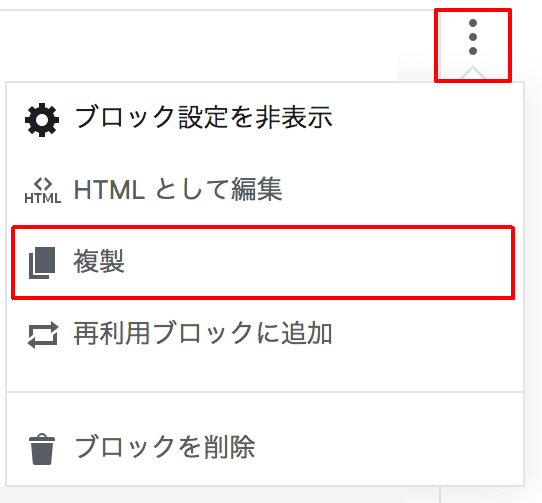
Edit as HTML
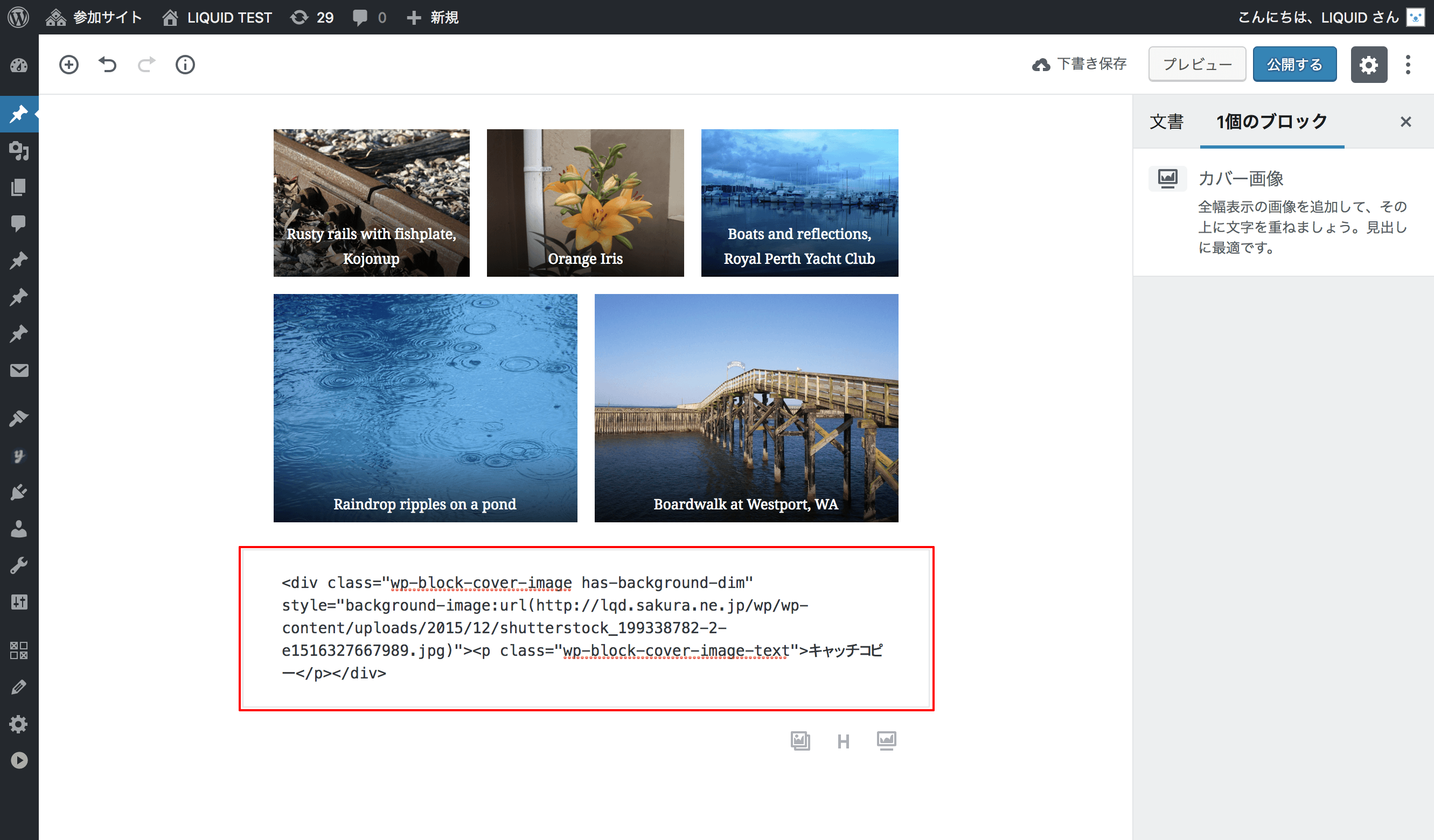
You can also choose "Edit as HTML" from the menu (three-dot icon) on the right of the block.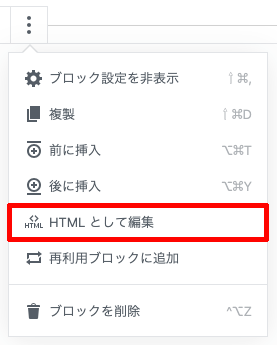 You can now edit the HTML directly.
Reusable Blocks
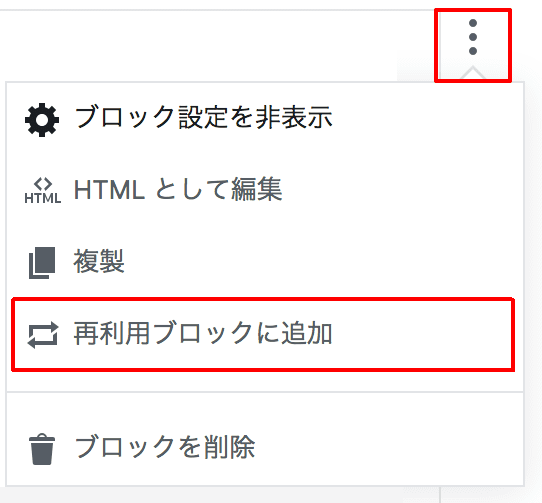
You can also choose "Add to Reusable blocks" from the menu (three-dot icon) on the right of the block."Reusable blocks" is a template feature that lets you save a block's content and reuse it.
It is handy for saving blocks you use frequently.
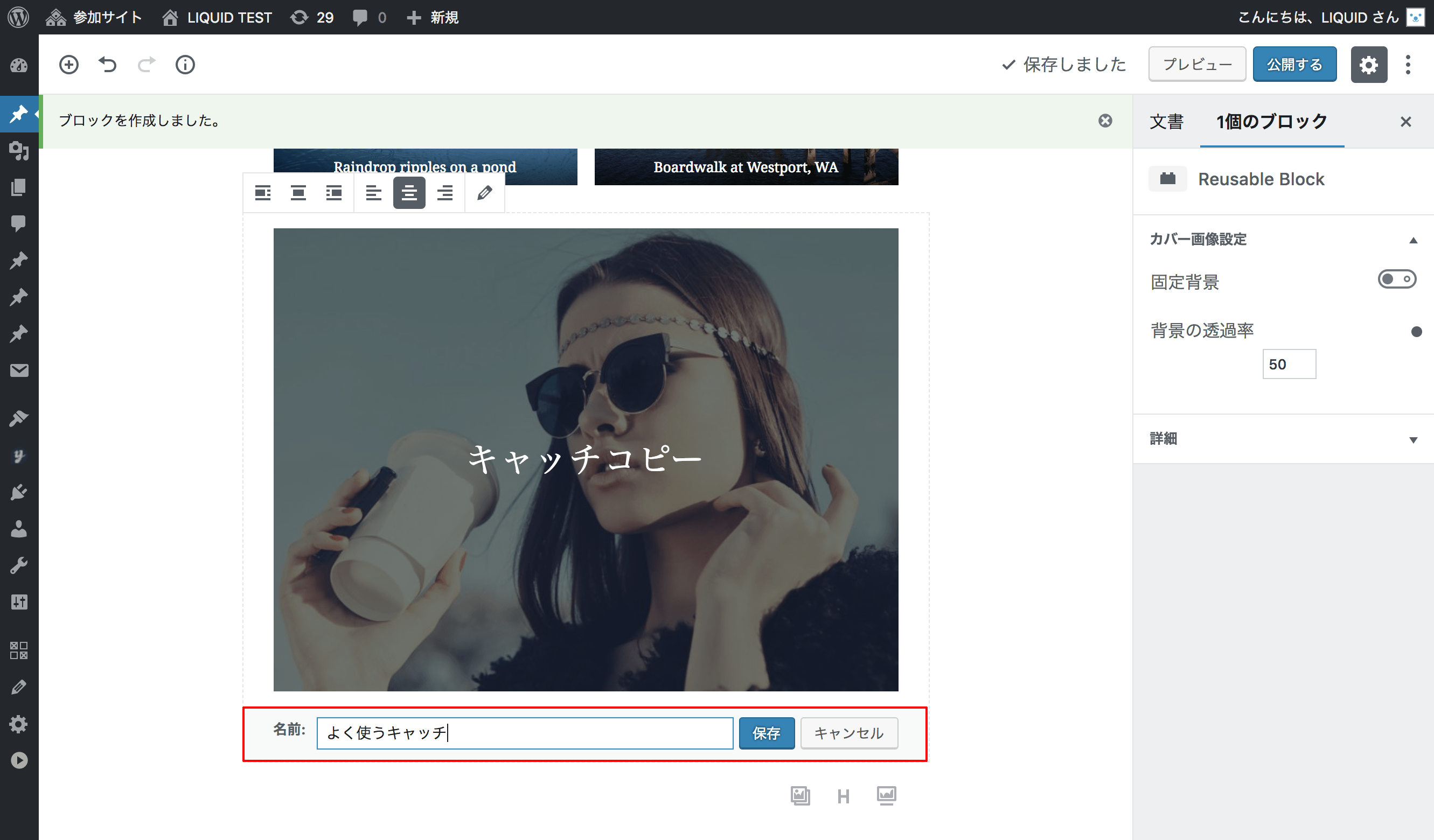
 Give the "Reusable block" a name and save it.
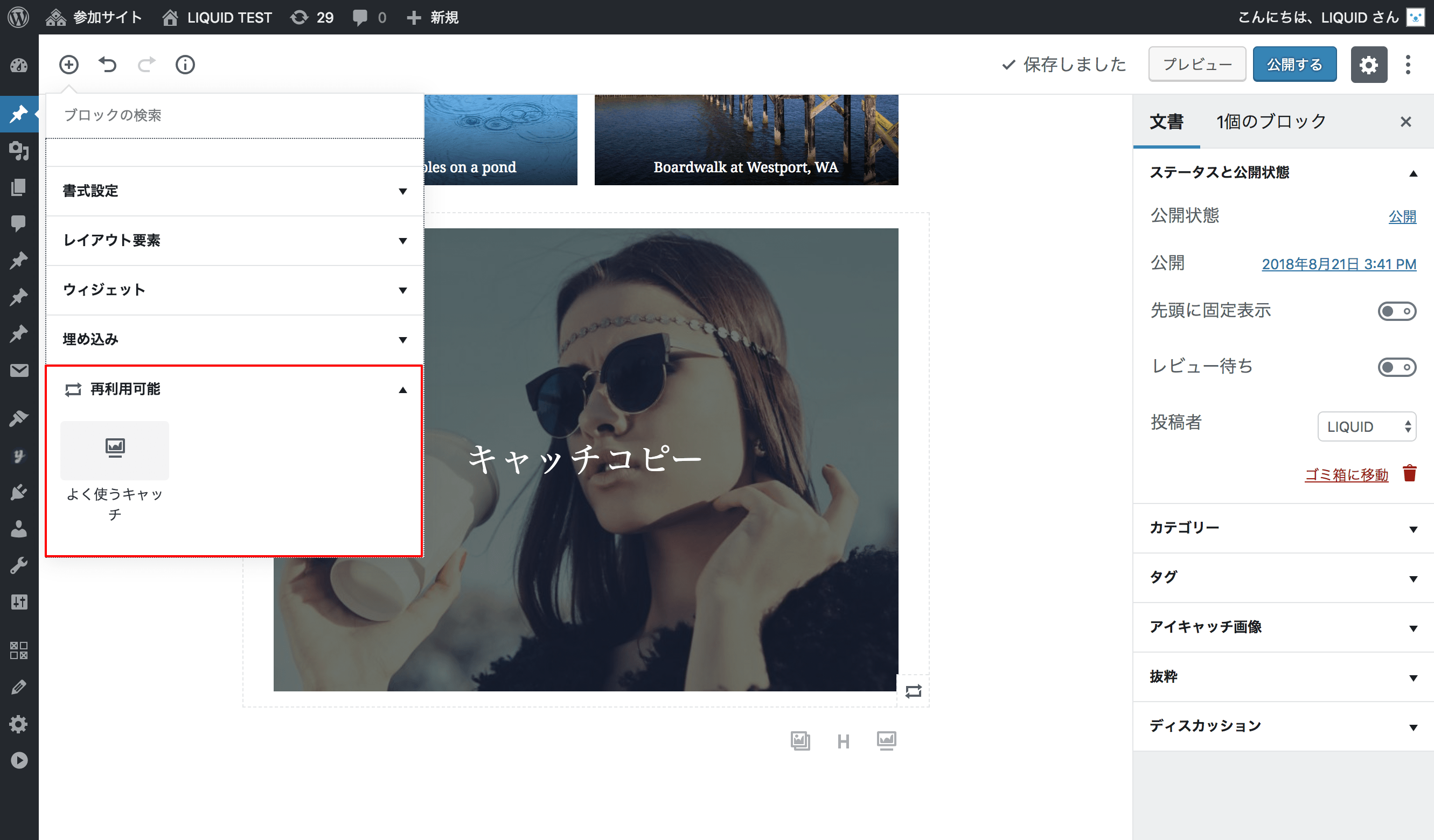
 The saved block then appears under "Reusable" blocks.
Selecting it lets you easily create an identical copy of the saved block.
 To change the content, choose "Convert to regular block" from the block menu and then edit it.
Code Editor
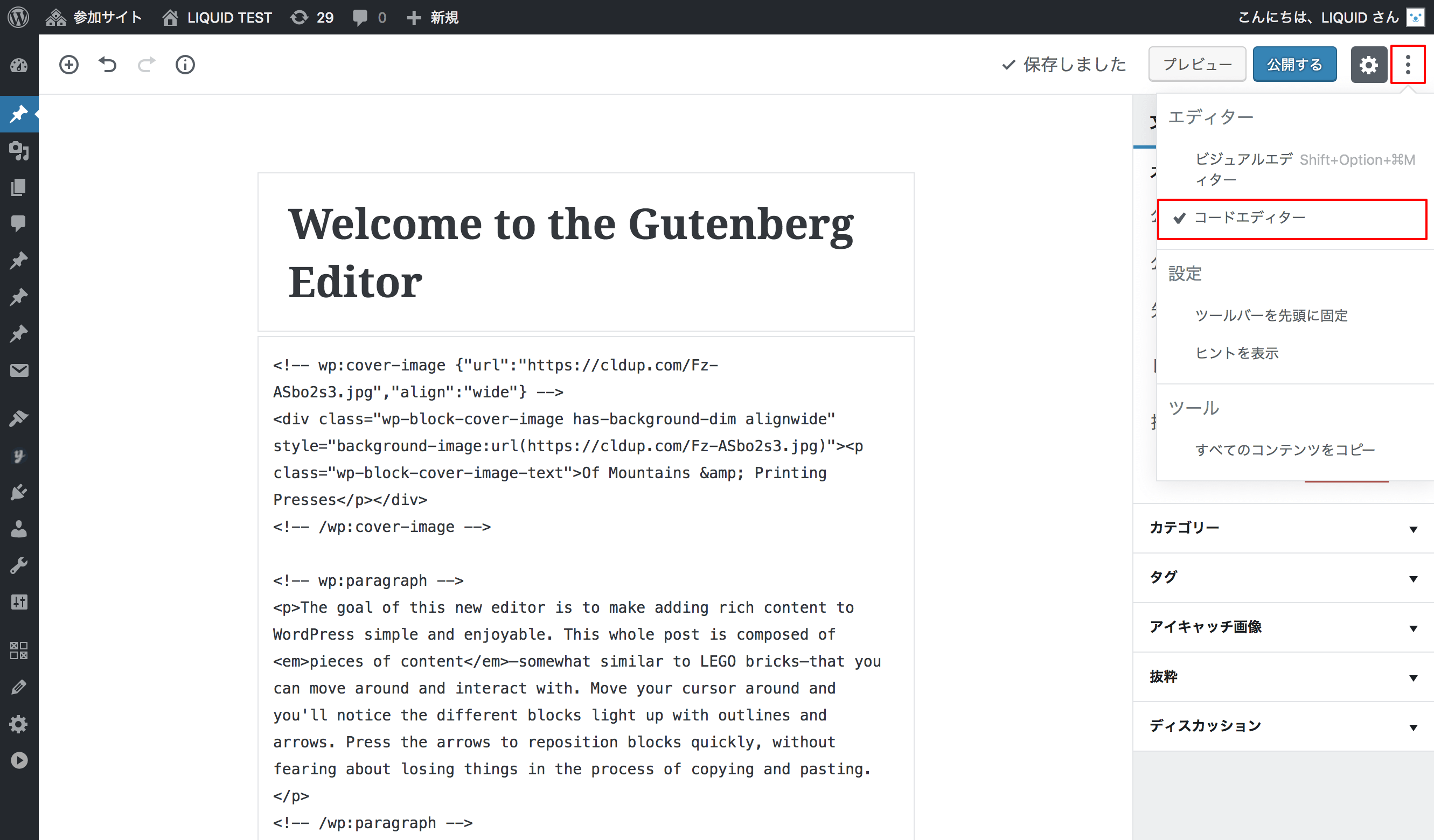
You can switch to the "Code editor" from the menu (three-dot icon) in the upper right of the screen.This puts you in a mode for editing HTML, much like the old text editor.
Note that blocks are identified by HTML comments.
<!-- wp:cover-image -->...<!-- /wp:cover-image -->
How to Edit Existing Pages
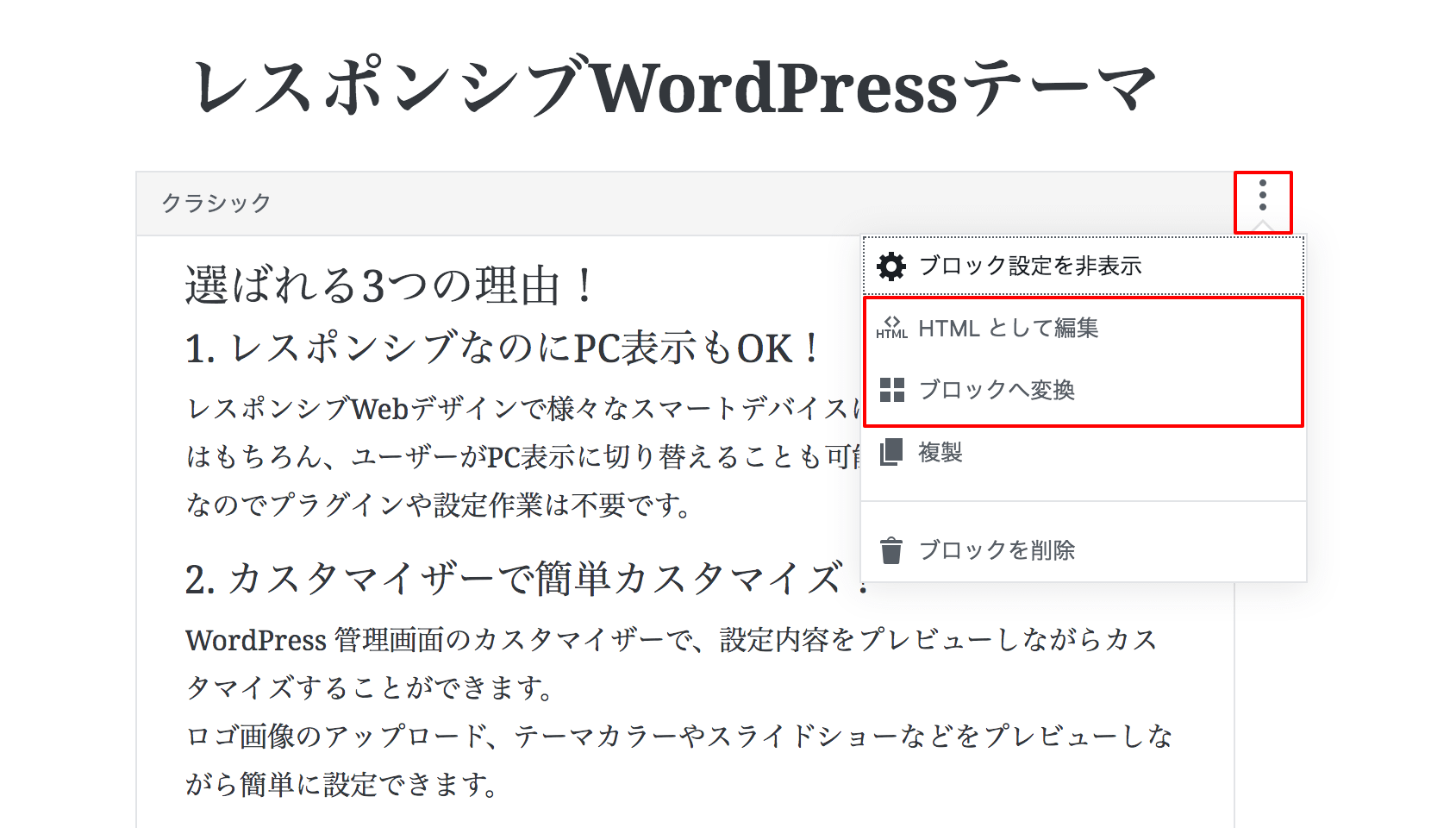
Existing pages created with the old editor are grouped into a single "Classic" block.From the menu on the right of the block, you can choose "Edit as HTML" or "Convert to blocks".
* Be careful: "Convert to blocks" removes CSS classes, DIVs, and similar markup.
Permalink Settings
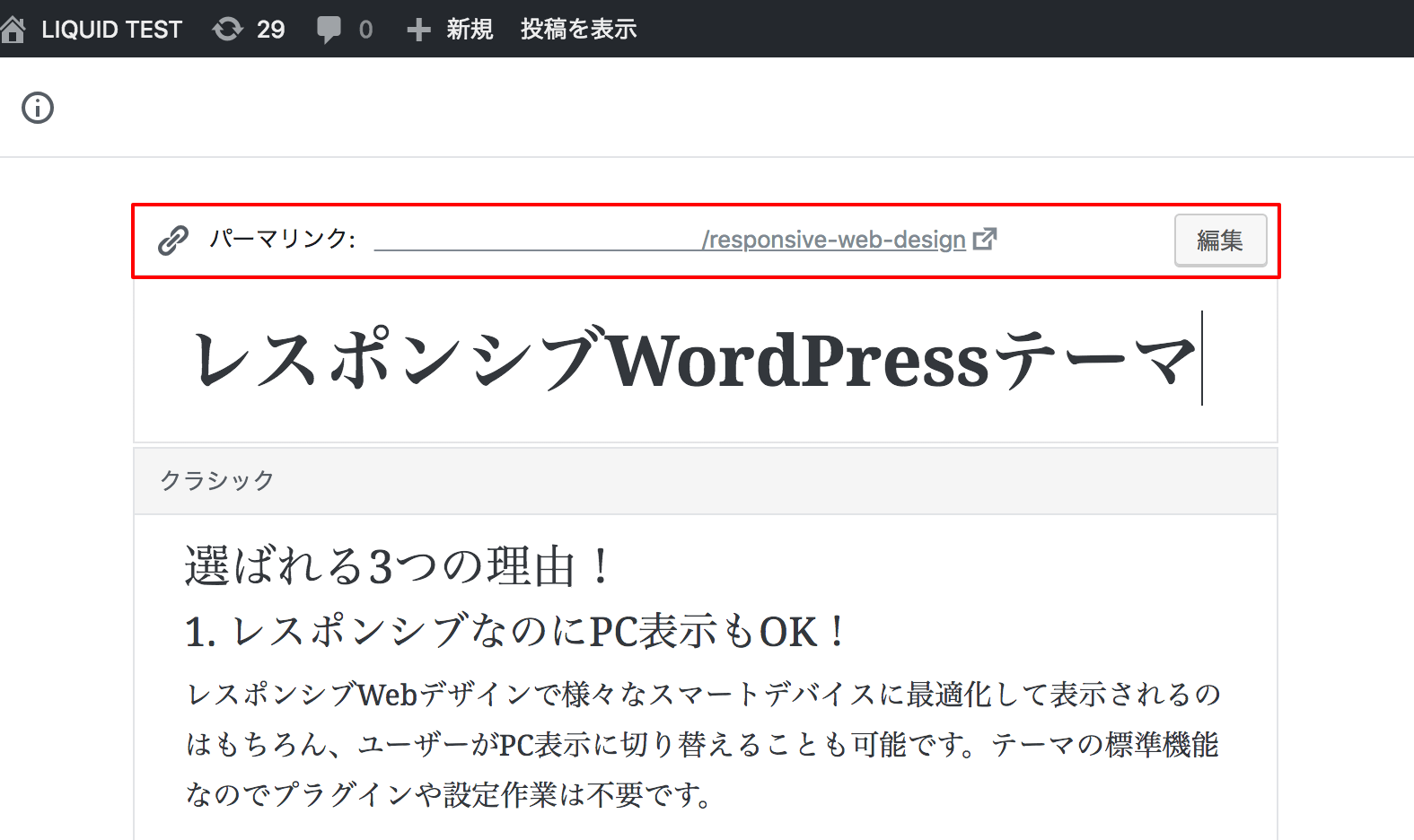
When you focus the article title area, the current permalink and an edit button appear, allowing you to edit it.You can also configure it from the "Document" tab in the sidebar.
How to Duplicate an Article
1. From the menu in the upper right of the page edit screen, choose "Copy all content".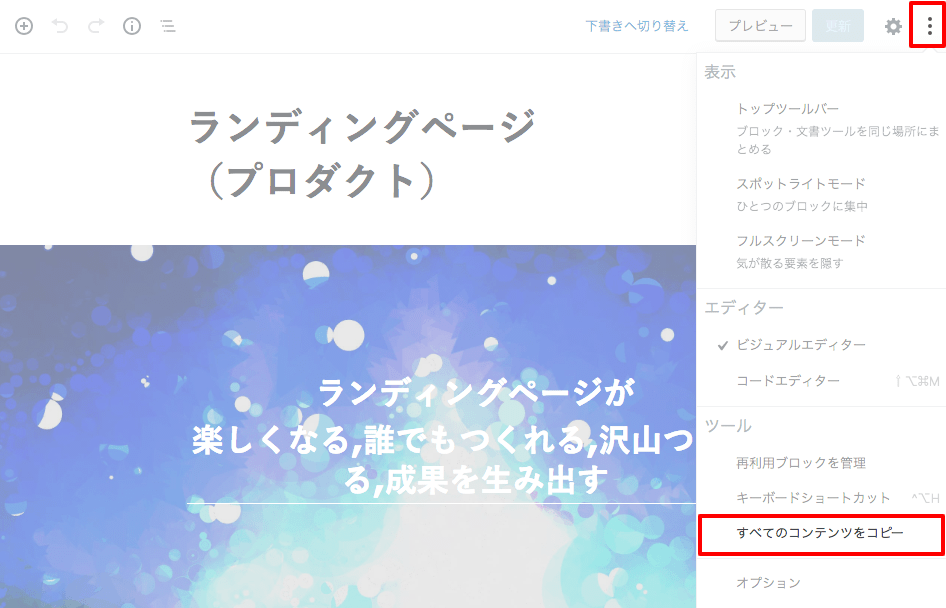 2. Create a new page and right-click in the body area to "Paste".
Block Editor Compatible WordPress Themes
LIQUID PRESS
The LIQUID PRESS series of themes is compatible with the block editor.It also supports block style designs, an original color palette that reflects your theme color, and wide/full-width options.
With the Gutenberg block editor, you can quickly build corporate sites, landing pages, owned media, and more.
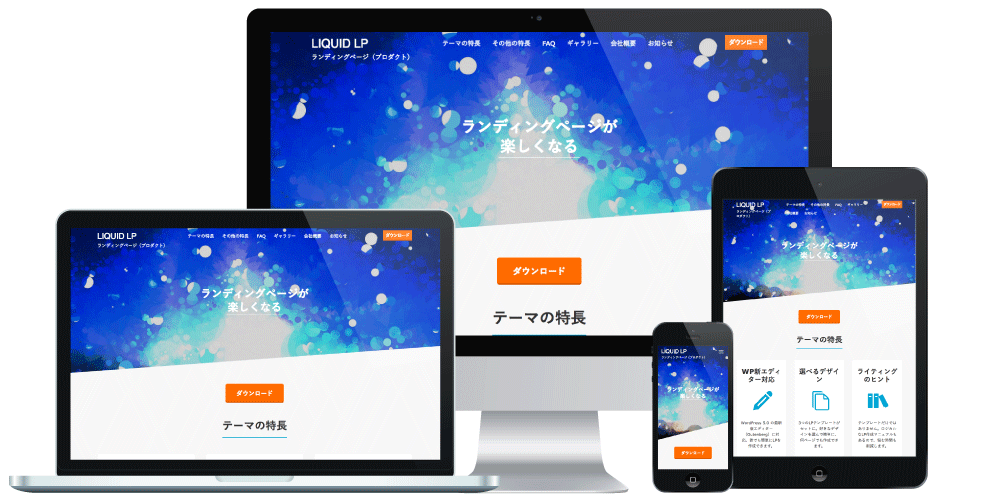
In addition, because the block editor works well with LIQUID PRESS, there are many handy ways to use it.
Block Editor Compatible Plugins
LIQUID BLOCKS
 An official WordPress plugin that streamlines article creation with Gutenberg block templates.
Free! Gutenberg block templates - LIQUID BLOCKS
LIQUID SPEECH BALLOON
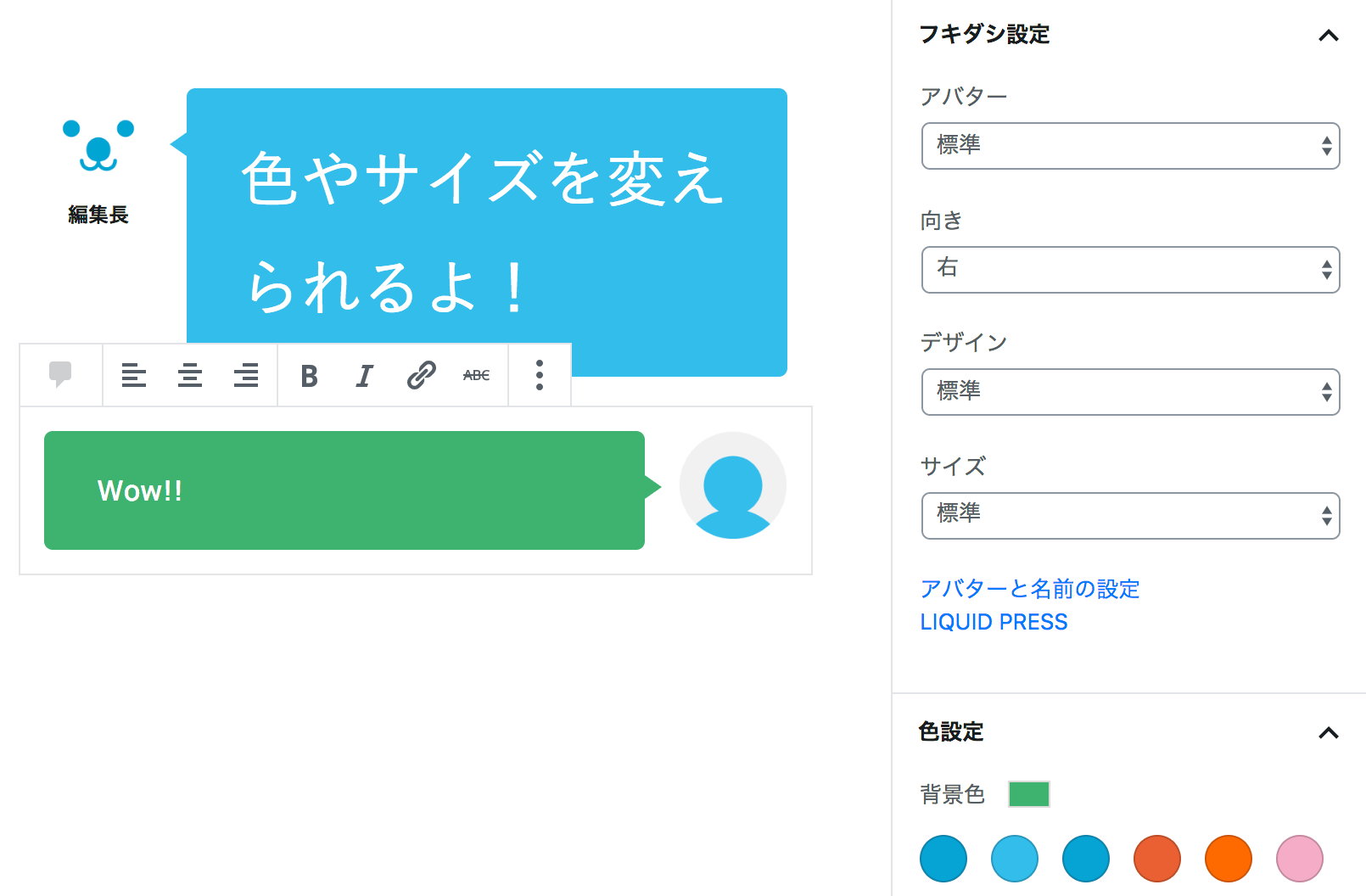 An official WordPress plugin that lets you create conversation-style speech balloons in the Gutenberg block editor.
Create speech-balloon conversations - LIQUID SPEECH BALLOON
Handy Ways to Use the Block Editor
LIQUID PRESS supports block styles, showing and hiding content by screen size, and more. For details, please see below.How to use the block editor and customize its design
Development Status
LIQUID PRESS publishes the development status and change history of its templates on GitHub.For details, please see below. To receive notifications about development status, click "Watch".
https://github.com/lqdjp/liquid-press/issues
Related Articles
- How to use the block editor and customize its design
- Free! Gutenberg block template plugin
- About supporting Google Mobile-First Indexing (MFI)
- WordPress AMP plugin compatibility status
LIQUID PRESS
» Unlimited Plan
» All Themes