How to Create a WordPress Landing Page
Here we introduce how to build a landing page (LP) in WordPress.
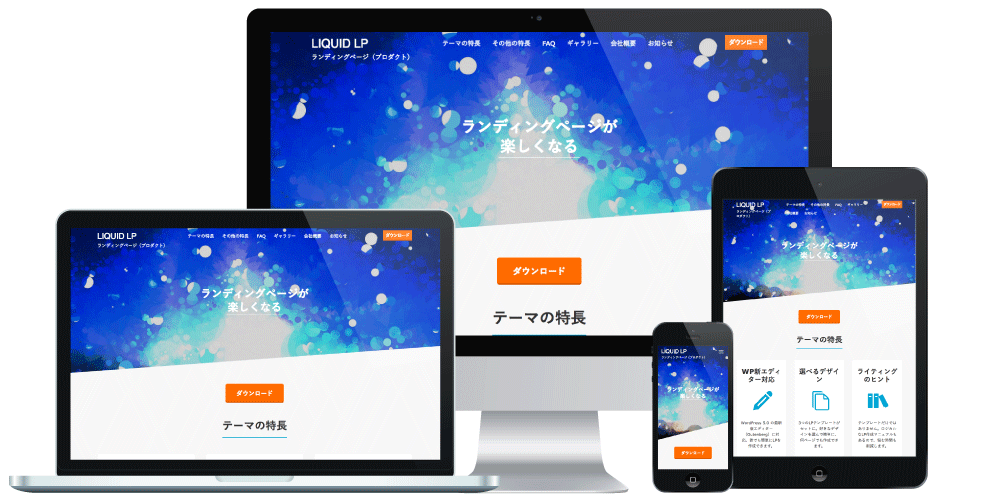
With "LIQUID LP", a WordPress theme compatible with WordPress's latest block editor, Gutenberg, you can create professional landing pages.
Here we introduce how to configure "LIQUID LP", the WordPress landing page theme.
You can also complete an LP easily by editing one of the three included sample pages.
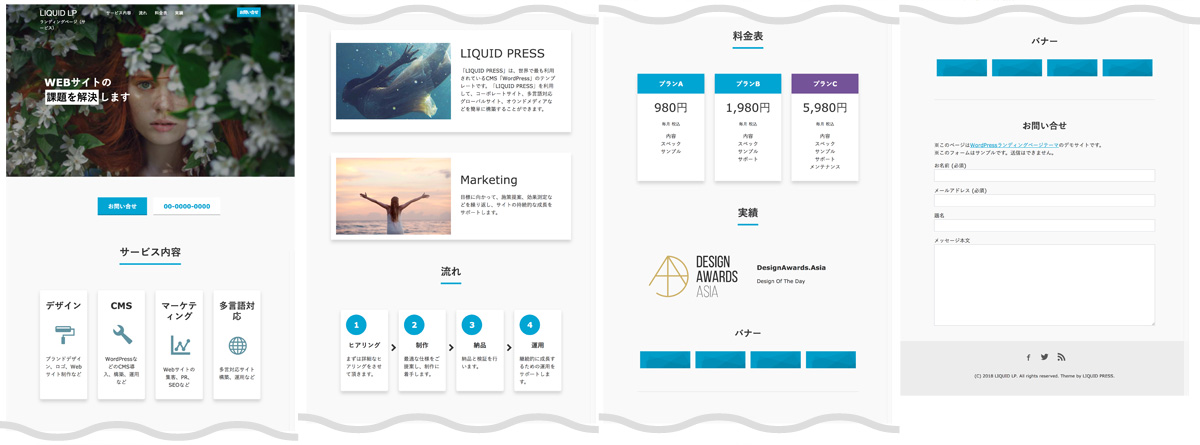
Landing Page Samples
Landing page (Product)
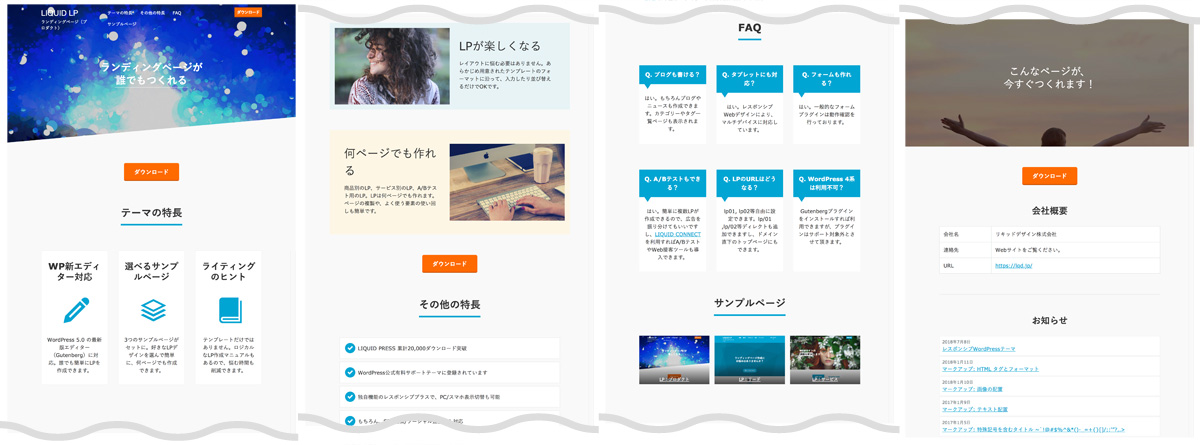
Landing page (Lead)
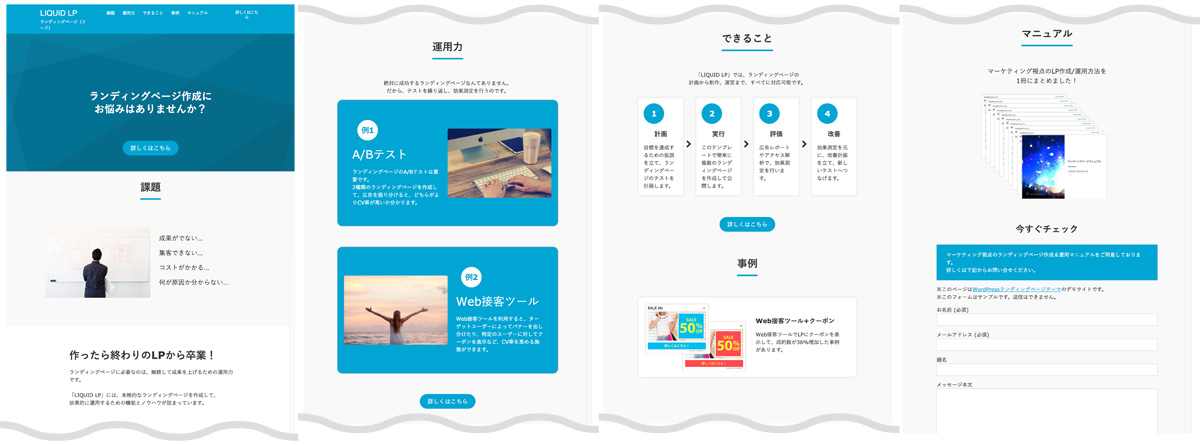
Landing page (Service)
How to Create a Landing Page
Landing pages can be created and managed as static pages.To create a landing page, select Page Attributes > Template > "LP".
To place it on the home page, please see here.
Template: LP
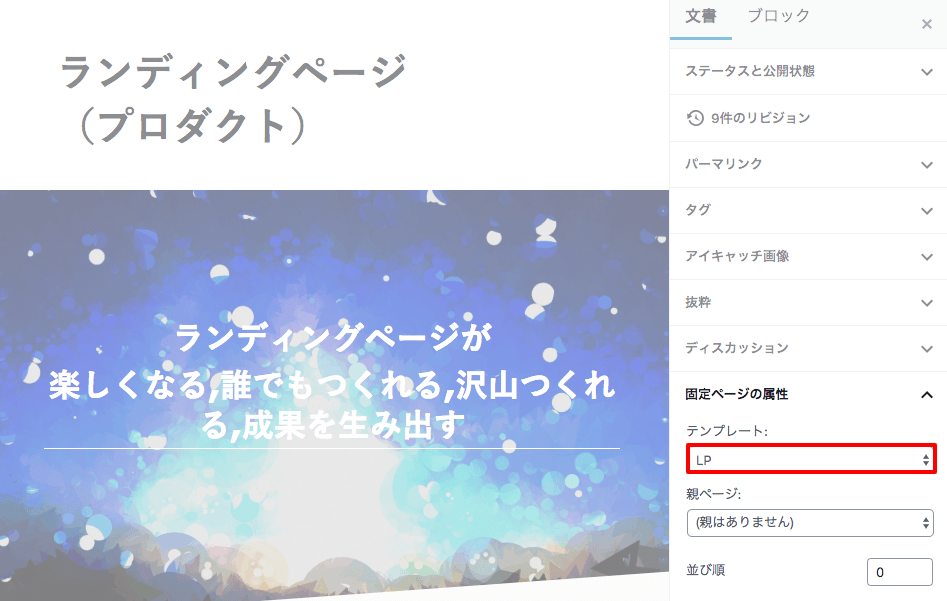
- Default template: a regular static page
- LP: a landing page
Importing the Sample Pages
You can import and use the landing page sample pages.Download "liquid-lp-sample.zip" as described in the email you received at the time of purchase.
How to Import
1. Extract "liquid-lp-sample-(Version).zip" and locate the "liquid-lp-sample-(Version).xml" file.2. Go to Admin > Tools > Import > WordPress "Run Importer", select "liquid-lp-sample-(Version).xml", and click "Upload file and import".
* If "Install Now" is displayed, click it to install the tool.
* If you see "This does not appear to be a WXR file...", extract the .zip and use the .xml file.
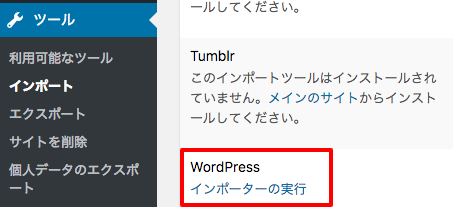
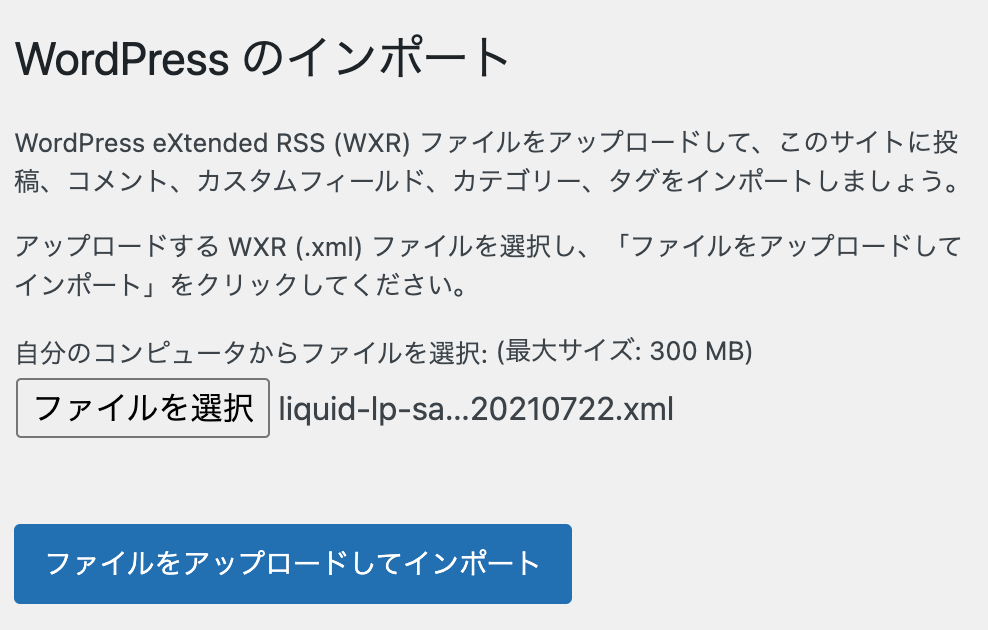
4. Three samples will have been imported as drafts under Admin > Pages.
Edit the LPs and use them as you like. You can also duplicate an LP to create more.
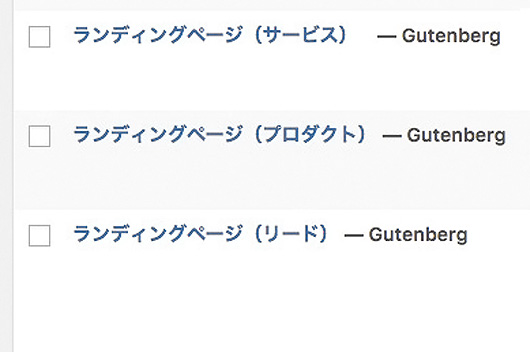 * Photographs are not included. Please edit the image blocks.
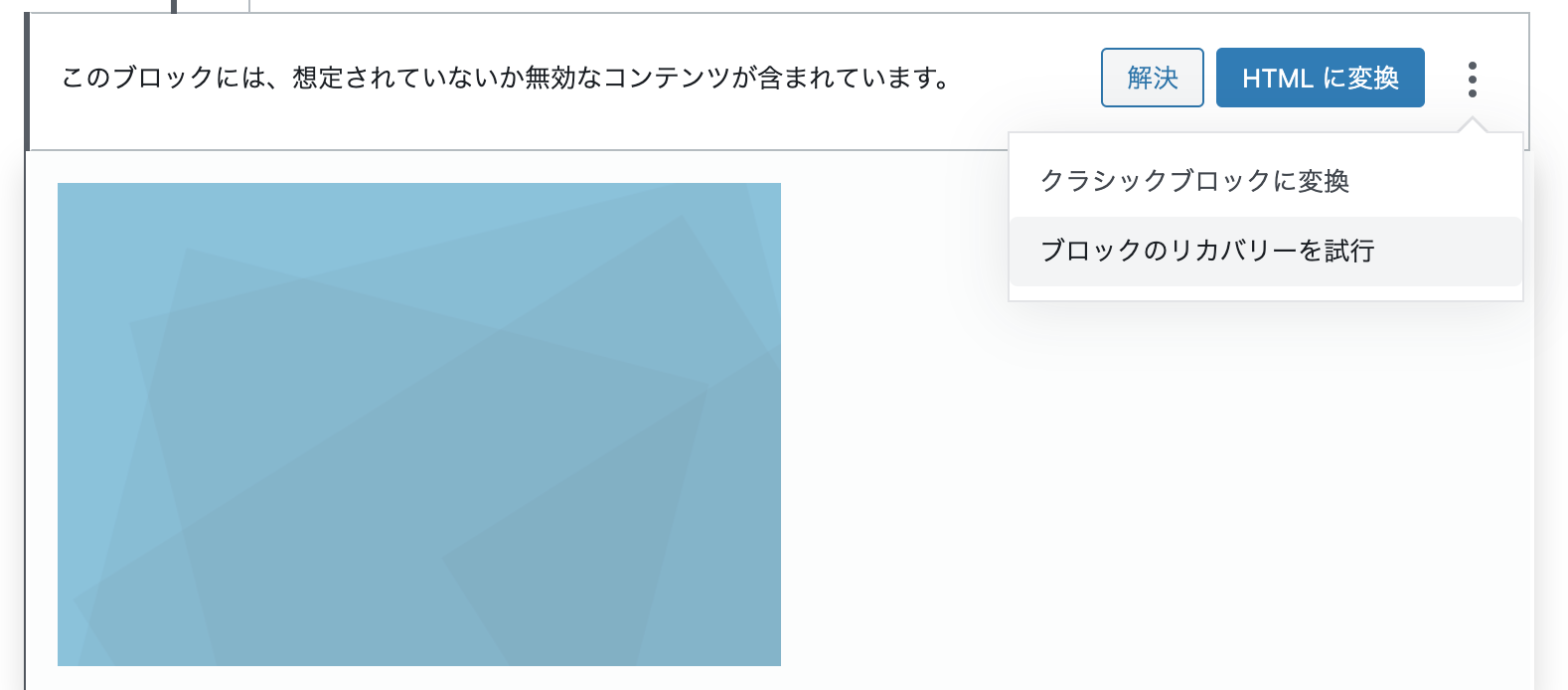
* If you see "This block contains unexpected or invalid content", click "Attempt block recovery".
About the Block Editor
Block Editor Support
The LP theme is compatible with the latest block editor in WordPress 5.0.In the block editor, a feature called "blocks" lets you build pages by combining elements such as headings, text, and images. You can easily create rich pages without writing any HTML code.
For details, please see How to use the WordPress block editor.
LP-Specific Blocks
Cover (lp-cover)
Adds the main visual for the LP. Upload an image or select one from the media library. Videos can also be selected.A variety of options are available; for details, please see Option Settings.
Button (lp-button)
Adds a button and its link destination. The button's background color and text color can be set from the sidebar.Combining it with columns (lp-buttons) lets you line up multiple buttons horizontally.
For phone numbers, you can add a call link by setting the link destination as shown below. Note that calls may not be possible depending on the specifications and settings of the user's device.
tel:0000000000
Columns
Adds a multi-column layout. You can also create pricing tables, banners, flows, FAQs, and more.A variety of options are available; for details, please see Option Settings.
Option Settings
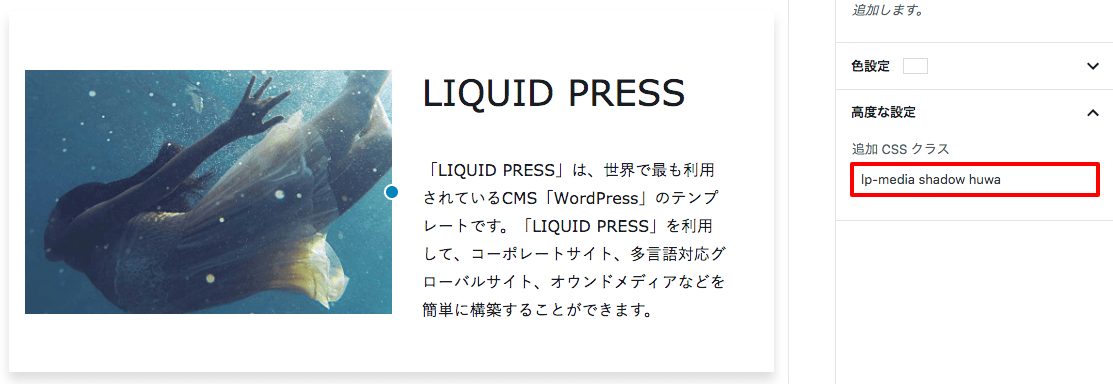
You can configure a variety of options by adding entries under Advanced > "Additional CSS class(es)".
These are already set up in the sample pages.
Additional CSS Classes
List of Options
| Block | CSS class | Option | Effect | |
|---|---|---|---|---|
| Cover | lp-cover | lp-skew | The bottom of the image is slanted. | |
| lp-loop | If you separate the bold text within the cover with commas, the text switches in sequence. | |||
| lp-big | Displayed at a larger size. | |||
| lp-anime | The image's opacity animates and the text fades in. | |||
| lp-head-static | The sticky header is disabled. | |||
| Button | lp-button | Gives the button a three-dimensional look. | ||
| Columns | lp-buttons | Used when lining up buttons horizontally. | ||
| lp-item | Applies a design optimized for LPs. | |||
| lp-plan | Applies a pricing table design. | |||
| lp-banner | Used when lining up banners horizontally. | |||
| lp-step | Applies a design that shows a process flow. | |||
| lp-faq | Applies an FAQ design. | |||
| Media & Text | lp-media | Applies a design optimized for LPs. | ||
| List | lp-list | Applies a design optimized for LPs. | ||
| Table | lp-table | Applies a design optimized for LPs. | ||
| Paragraph | lp-circle-item | Turns it into a circular item. | ||
| icon-* | Displays an icon font. To display only the icon, enter a single-byte space as the body text. |
|||
| lp-plan-ttl | Used for headings inside a pricing table (lp-plan). | |||
| lp-faq-ttl | Used for headings inside an FAQ (lp-faq). | |||
| Common | huwa | Fades in softly as you scroll. | ||
| shadow | Adds a shadow. | |||
| border | Adds a border. | |||
| rounded | Rounds the corners. | |||
Display Utilities
You can also configure display utilities (such as elements hidden on smartphones).Bootstrap 4
LIQUID PRESS themes also support Bootstrap 4 CSS classes.For details on the available CSS classes, please see below.
https://getbootstrap.com/docs/4.1/getting-started/introduction/
Appearance > Customize > Layout
* To customize the layout of the home page, set Admin > Settings > Reading > Homepage settings to "Your latest posts" and check from there.
* If your layout settings cannot be saved, try temporarily disabling your server's WAF settings and check again.
If you have installed WordPress core fresh, the LIQUID PRESS sample content is applied under Appearance > Customize.
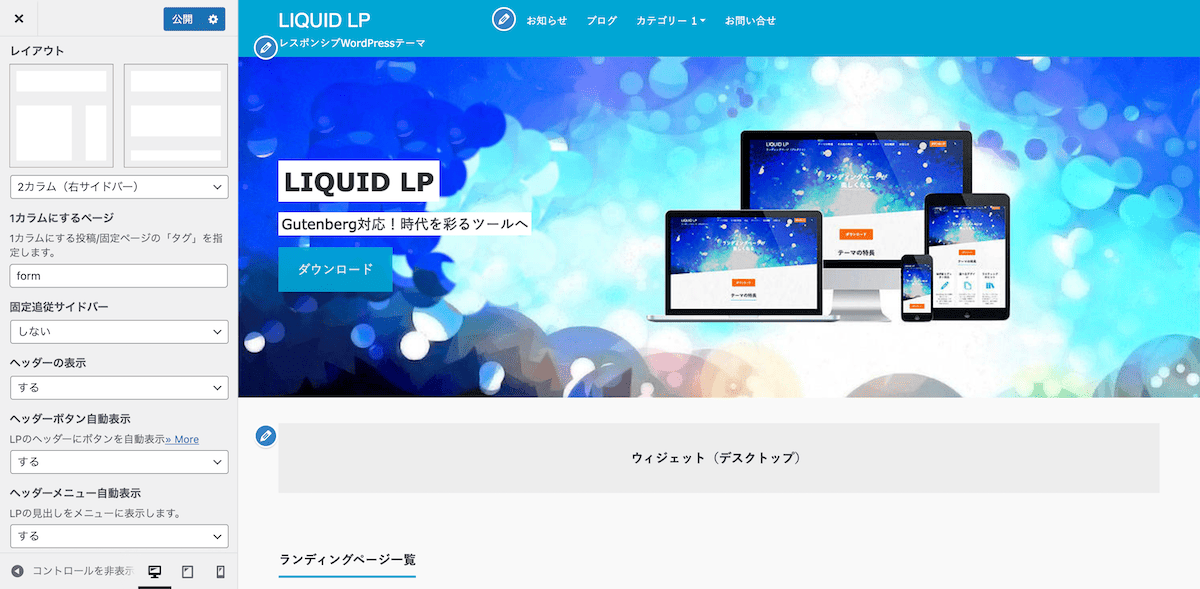
General Settings
* Here we cover settings specific to landing pages.For general site-wide settings, please see the theme settings manual.
Header Display
You can choose whether or not to display the site-wide header.If it is hidden, the logo, title, global menu, and so on will also not be displayed.
Automatic Header Button Display
You can choose whether or not to automatically display a button in the LP header.The same content as the first button block in the LP is automatically displayed in the header.
 If you disable automatic display, you can place a "Custom HTML" or "Image" widget under Appearance > Widgets > Header Button.
Example: Custom HTML
<div class="wp-block-button alignright lp-button">
<a href="#SetURL" class="wp-block-button__link" style="background:#ff6900; color:#fff;">Contact us</a>
</div>
Automatic Header Menu Display
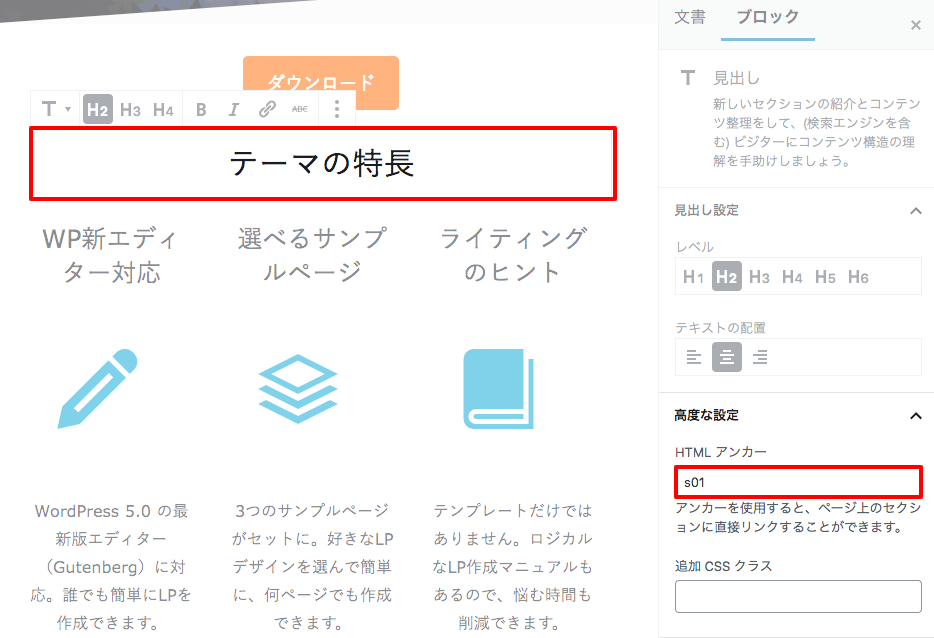
You can choose whether or not to automatically display a menu in the LP header. When automatic display is enabled, any Heading 2 (H2) in the LP that has an HTML anchor set under Advanced is displayed as an in-page link.
Specify the HTML anchor using single-byte alphanumeric characters. Heading 3 and lower will not appear in the header menu even if configured.
When automatic display is enabled, any Heading 2 (H2) in the LP that has an HTML anchor set under Advanced is displayed as an in-page link.
Specify the HTML anchor using single-byte alphanumeric characters. Heading 3 and lower will not appear in the header menu even if configured.
When automatic display is disabled, and on pages that do not use the LP template, the contents of Admin > Appearance > Menus are displayed.
Whether the sticky header is enabled or disabled can be set per LP page under Option Settings (Cover item).
The header background and text colors can be changed under color settings.
Header Title Link Destination
For the LP header title (logo), you can choose whether the link goes to the site's home page or to the top of the current page.If you choose the top of the page, it scrolls to the very top of the page.

Featured Image
You can choose whether or not to display the featured image within posts and static pages.You can also choose whether or not to display featured images on listing pages.
* These are not displayed within the LP template.
Title of the Pinned Pages Section
You can specify the title of the pinned section on the home page.* This is not displayed within the LP template.
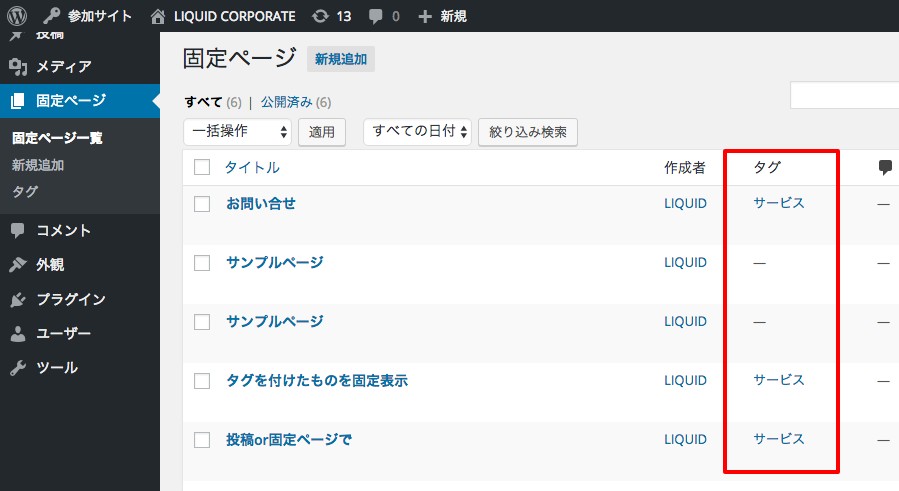
Tag for Pinned Pages
Specify the slug of the tag on the posts or static pages to be pinned to the home page.If there are three or more, they wrap onto additional lines. They are displayed in order of newest date first.
Adding the specified tag to a post or static page displays it automatically.
If the tag's name is "Service" and its slug is "service", specify "service".
Latest Posts Display
You can choose whether or not to display a list of the latest posts on the home page.* This is not displayed within the LP template. In the LP template, you can create a "Latest Posts" block with Gutenberg.
Homepage Settings
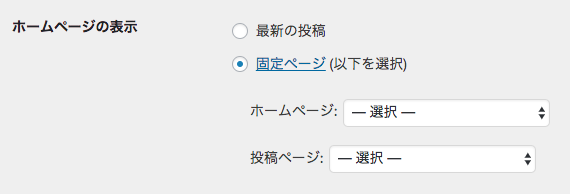
Under Admin > Settings > Reading > "Your homepage displays", you can select the LP (static page) to use as your home page.
- Homepage: the selected page becomes the home page.
- Posts page: the selected page becomes the latest posts listing page.
Article-Style Landing Pages
You can also create reading-oriented landing pages that resemble blog article content.For an article-style LP, create the article as a regular "static page" or "post".
For details, please see How to use the WordPress block editor.
Block Templates
LIQUID BLOCKS is a block template plugin that makes the WordPress block editor even more convenient. Using block templates, you can complete the design of an entire page in an instant. For details, please see LIQUID BLOCKS.
Speech Balloon Blocks
Using the official WordPress plugin "LIQUID SPEECH BALLOON", you can easily create conversation-style speech balloon blocks.They are effective for landing pages with empathy-driven content.
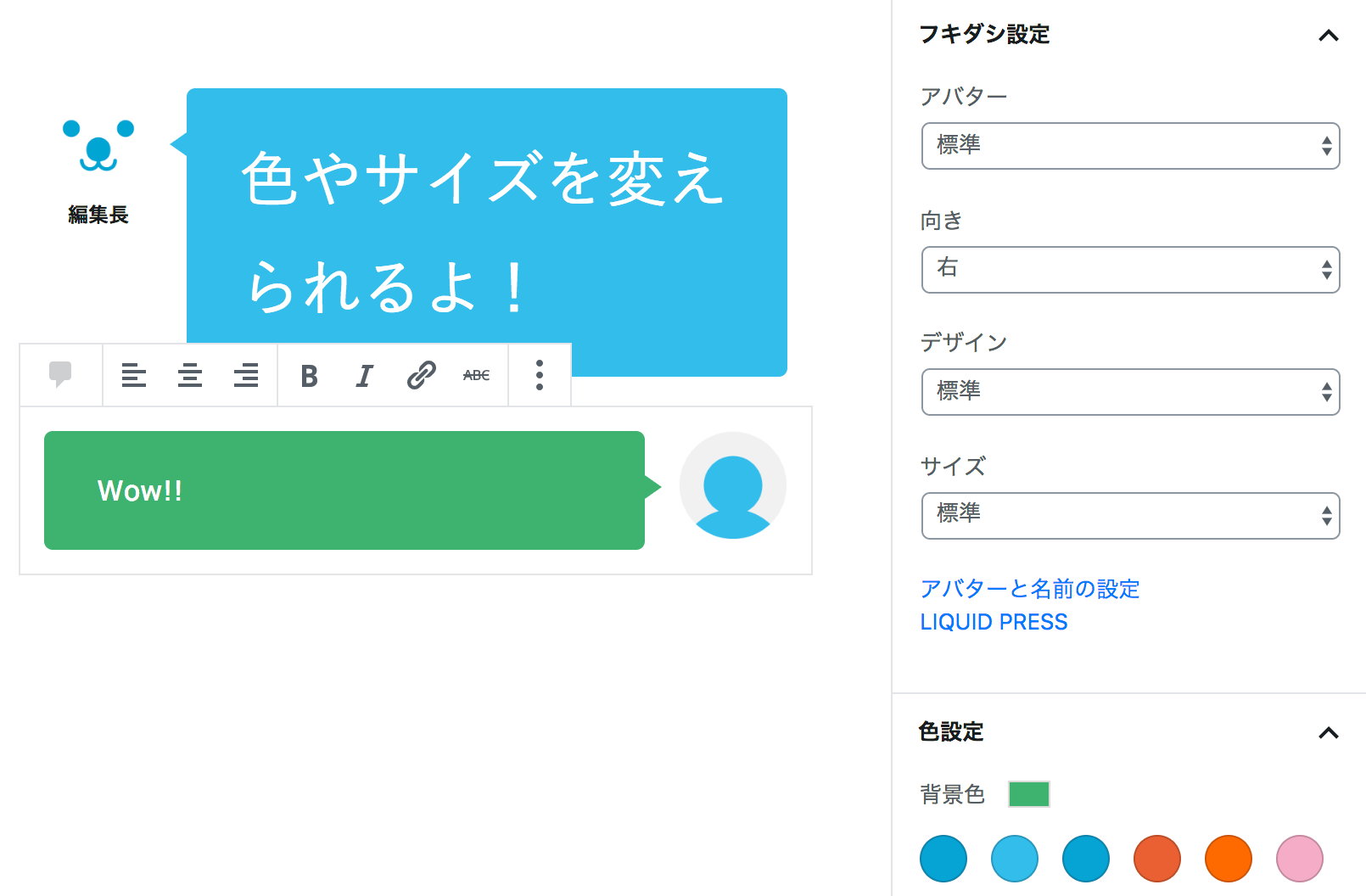 For details, please see LIQUID SPEECH BALLOON.
Landing Page Manual
You can view the landing page manual PDF under Admin > Appearance > Theme Support (license ID required).The PDF covers tips on running an LP and applying PDCA. For how to create an LP, please see this page.
Web Engagement Tool
Using the official WordPress plugin "LIQUID CONNECT", you can run popup banners, random banners, and A/B tests.These are effective for improving landing page conversion rates.
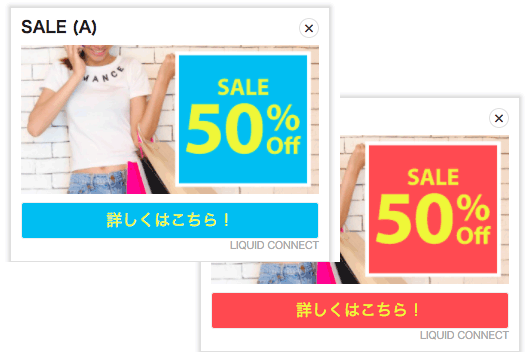 For details, please see LIQUID CONNECT.
Form Settings
For details on how to configure a contact form, please see here.Troubleshooting
For details on block editor issues and similar problems, please see here.LIQUID PRESS
 » Unlimited Plan
» All Themes
» Unlimited Plan
» All Themes